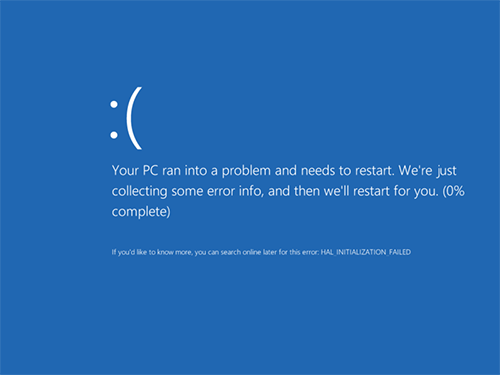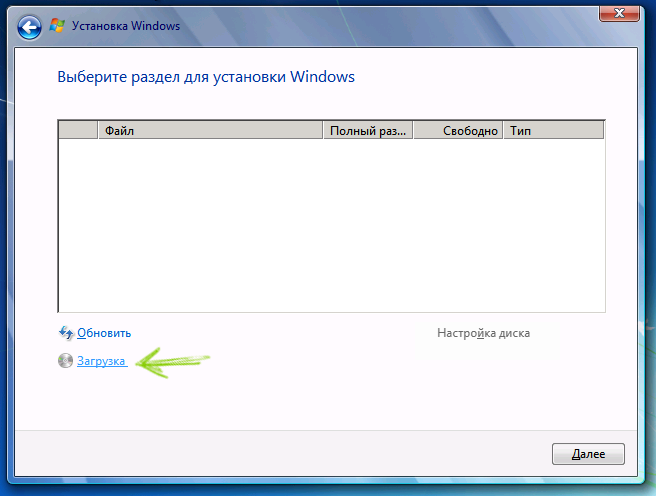

If you suspect that your computer or laptop hard drive (HDD) or solid-state drive (SSD) is experiencing issues — such as unusual noises, slow performance, or random system errors — it’s a good idea to check its health using specialized diagnostic software.
In this article, we review the most popular free tools for checking HDD and SSD drives, explain what each utility can do, and provide additional guidance to help you diagnose disk problems correctly.
If you prefer not to install third-party software, you can start with built-in Windows tools. The guide How to Check a Hard Drive Using Command Prompt and Windows Built-In Utilities may already help you identify file system errors or damaged sectors.
Free HDD and SSD Testing Software
Although Victoria HDD is often mentioned as the most popular disk diagnostic tool, we’ll start with more beginner-friendly options. Victoria will be covered later in the article.
⚠️ Important: SSD drives require different diagnostic approaches than traditional HDDs. If you are checking an SSD, refer to methods specifically designed for solid-state drives.
HDDScan – Free HDD and SSD Diagnostic Tool
HDDScan is a powerful and completely free utility designed for checking hard drives and SSDs. It allows users to:
- Scan HDD sectors
- View S.M.A.R.T. data
- Run various disk surface and performance tests
HDDScan does not repair errors or bad sectors. Instead, it helps identify whether a drive is failing. While this may seem like a limitation, it is actually safer for beginners, as there is minimal risk of causing additional damage.
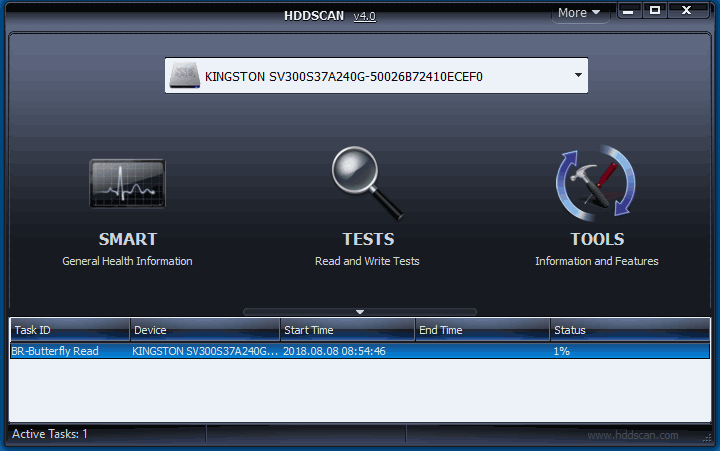
The software supports:
- IDE, SATA, SCSI drives
- External USB drives
- RAID arrays
- SSDs
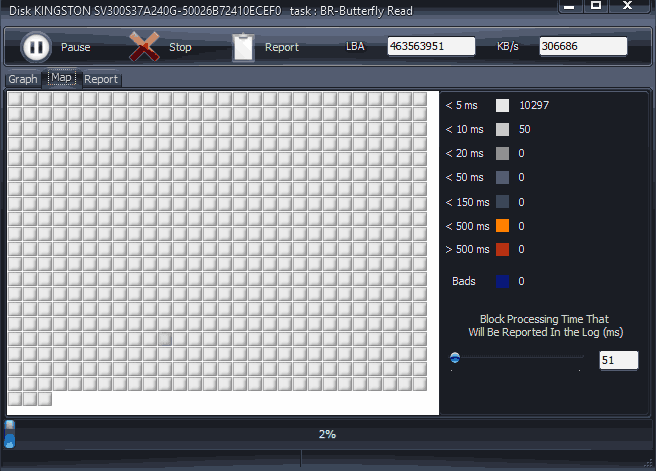
Detailed usage instructions and download options are available on the official HDDScan website.
Seagate SeaTools
Seagate SeaTools is a free diagnostic utility that works with hard drives from many manufacturers, not just Seagate. It also supports external hard drives.
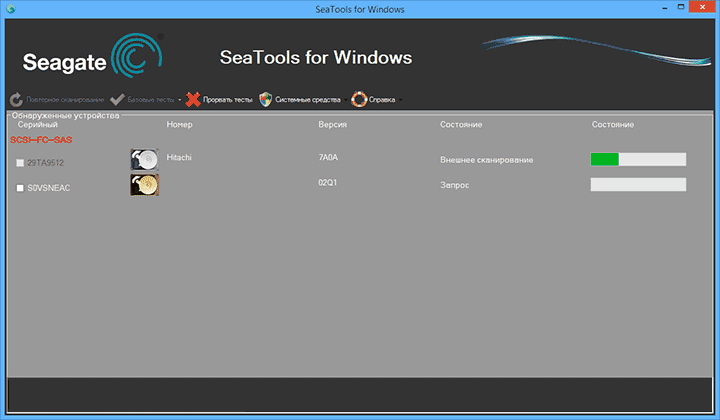
SeaTools is available in two versions:
- SeaTools for Windows – runs directly within the Windows interface
- SeaTools for DOS – a bootable ISO image for running diagnostics outside of Windows
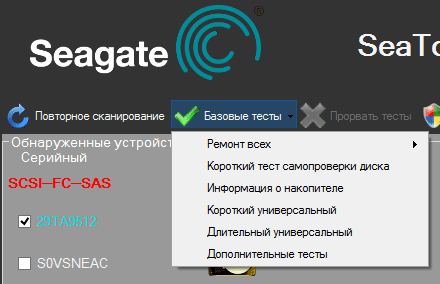
Using the DOS version helps avoid interference from the operating system, which constantly accesses the drive during normal operation.
With SeaTools, you can:
- Run basic and advanced tests
- View SMART data
- Automatically attempt to repair damaged sectors
All tests are available under the “Basic Tests” menu.
Western Digital Data Lifeguard Diagnostic
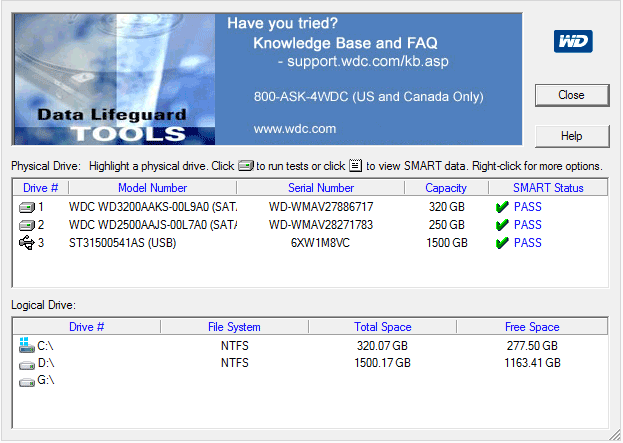
Western Digital Data Lifeguard Diagnostic is designed specifically for Western Digital hard drives.
The tool is available as:
- A Windows application
- A bootable ISO image
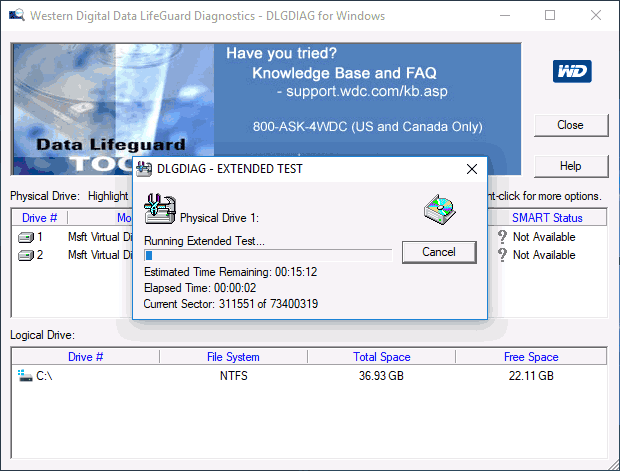
With this utility, you can:
- View SMART information
- Scan for bad sectors
- Perform a full disk erase (zero-fill)
- Review diagnostic test results
You can download it from the official Western Digital support website.
Checking a Hard Drive Using Built-In Windows Tools
Windows 11, 10, 8, 7, and even older versions include built-in disk checking tools that allow you to scan for file system errors and surface issues without installing additional software.
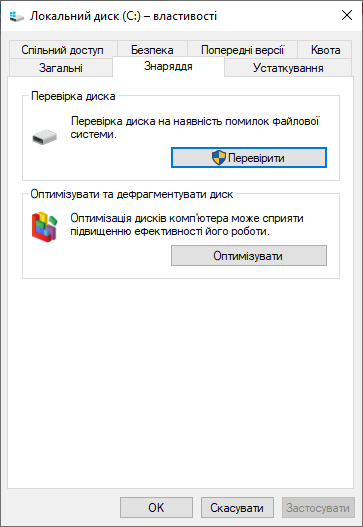
How to Run a Disk Check in Windows
- Open File Explorer
- Right-click the drive you want to check
- Select Properties
- Go to the Tools tab
- Click Check
This method is not the most thorough, but it can detect basic errors. Additional methods are available using Command Prompt and advanced Windows utilities. Check hard disk Windows
Checking Hard Drive Health with Victoria
Victoria is one of the most powerful and widely used disk diagnostic tools available.
With Victoria, you can:
- View detailed SMART data (including for SSDs)
- Scan HDDs for errors and bad sectors
- Mark damaged sectors as unusable
- Attempt sector recovery in some cases
Victoria is available as:
- Victoria for Windows (latest version 5.37)
- Victoria for DOS (bootable ISO)
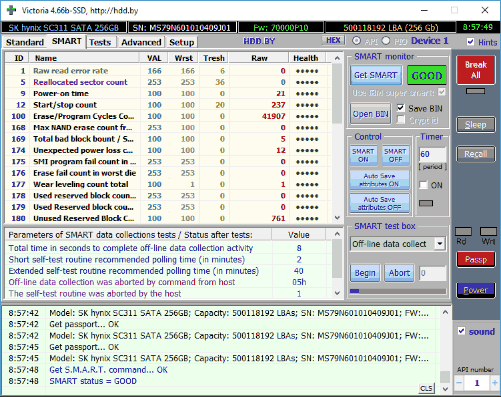
The main working area in the Windows version is the Tests tab, where you can visually assess sector response times.
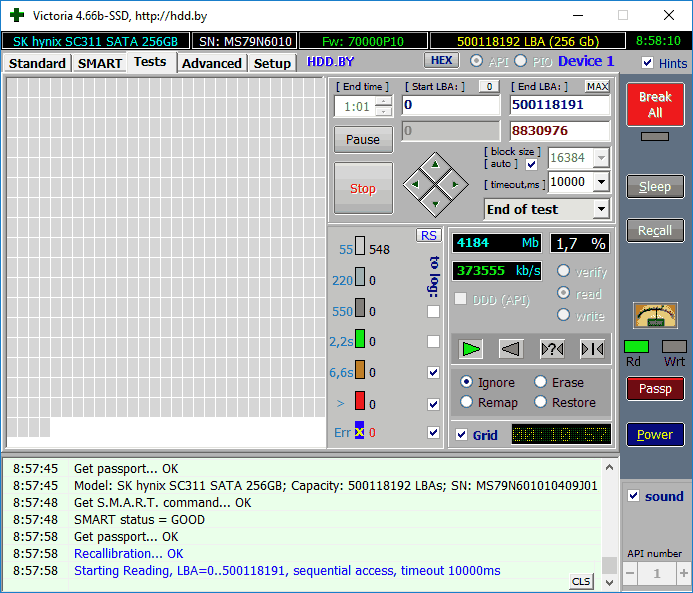
⚠️ Sectors with access times above 200–600 ms (orange or red blocks) indicate drive degradation. This type of testing is suitable only for HDDs, not SSDs.
What to Do If Bad Sectors Are Found
If damaged sectors or bad blocks are detected, the best solution is:
- Back up your data immediately
- Replace the hard drive as soon as possible
Most bad sector “repairs” are temporary. Drive degradation usually continues over time.
Additional Information
- Drive Fitness Test (DFT) is sometimes recommended, but it has limitations and may not work with certain Intel chipsets
- SMART data is not always interpreted correctly by third-party software
- Red warnings do not always indicate a critical failure — try using the manufacturer’s official utility for confirmation
Final Note
Regular disk health checks help prevent data loss and unexpected system failures. If your drive shows early warning signs, timely replacement can save both time and critical information.