
Laptop overheating is a common issue that can have many causes, ranging from dust buildup in the cooling system to hardware or software problems affecting power distribution. One of the most common consequences of overheating is unexpected shutdowns, especially during gaming or heavy workloads.
In this article, we’ll explain why laptops overheat, what you can do about it, and how to prevent the problem in the future.
Why Is My Laptop Overheating?
In most cases, overheating is caused by an inefficient cooling system. This may result from dust accumulation inside the laptop, blocked airflow, or a malfunctioning cooling fan.
Hardware-level issues, such as damaged microchips or power management failures, are far less common and usually require professional diagnostics.
Dust Inside the Laptop Cooling System
Dust buildup is one of the most common causes of laptop overheating. Over time, dust blocks air channels and reduces heat dissipation.
If your laptop model allows it, you can:
- Remove the bottom cover following the manufacturer’s instructions
- Use a low-power vacuum or compressed air to remove dust
- Clean plastic and metal parts with cotton swabs lightly moistened with isopropyl alcohol
⚠️ Do not clean the motherboard or exposed chips directly.
Allow the laptop to dry for at least 10 minutes before reassembling.
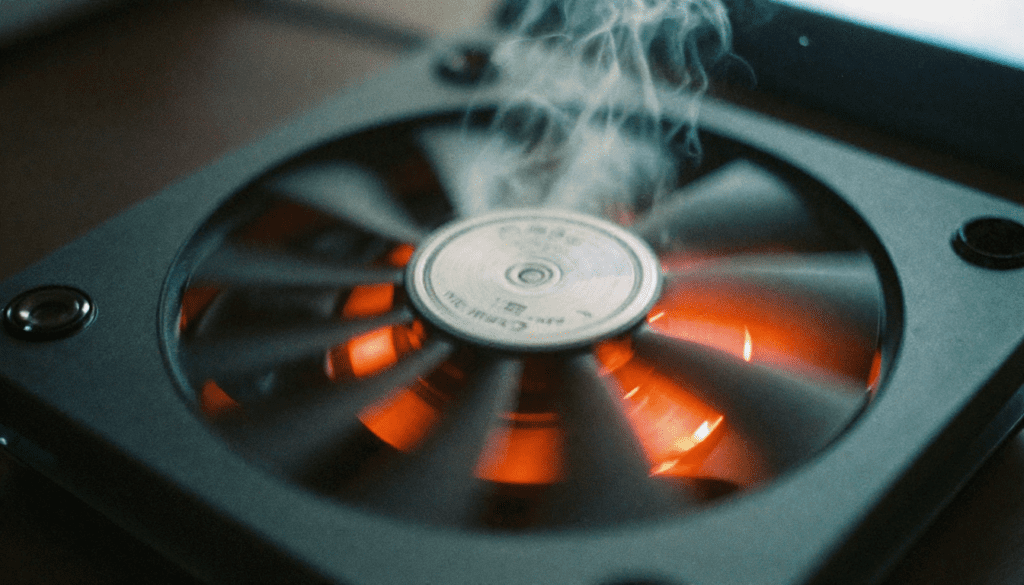
Laptop Fan Not Working Properly
Another frequent cause of overheating is a failing cooling fan. Fans typically last 2–5 years, depending on usage and build quality.
Signs of fan issues include:
- Loud or unusual noise
- Slow rotation
- Increased internal temperatures
Some older fans can be serviced by cleaning and re-lubricating bearings, but many modern laptop fans are non-repairable. In such cases, professional replacement is recommended.
Other Factors That Cause Laptop Overheating
Ambient Temperature
Laptops rely on surrounding air for cooling. Using a laptop in a hot environment makes cooling less effective. Avoid placing laptops near heaters, fireplaces, or direct sunlight.
High System Load
Intensive tasks such as gaming, video editing, or large file transfers increase power consumption and heat output (measured as TDP in watts).
Storage and Network Activity
Heavy disk usage, such as torrent seeding or constant data transfers, can increase heat, especially on older hard drives.
Gaming and Overheating
Modern games place extreme stress on:
- GPU
- CPU
- RAM
- Storage
- Battery
Without proper cooling, prolonged gaming sessions can damage components. If gaming is a priority, a desktop PC is a better long-term solution.
How to Prevent Laptop Overheating
- Use your laptop on a hard, flat surface
- Avoid beds, carpets, and laps that block airflow
- Never cover a running laptop or its keyboard
- Keep pets away from ventilation areas
Regular internal cleaning is recommended at least once per year, or more often in dusty environments.
Laptop Cooling Pads
Cooling pads can significantly reduce temperatures by improving airflow. Many models also provide extra USB ports and adjustable fan speeds.
When choosing a cooling pad:
- Match fan placement to your laptop’s ventilation layout
- Ensure airflow targets internal components, not just the case
Replacing Thermal Paste
Thermal paste helps transfer heat from chips to the cooling system. Over time, it dries out and loses effectiveness.
To replace it:
- Remove the cooling system
- Clean old paste carefully
- Apply a thin, even layer (about 1 mm)
- Reinstall the cooling system
If the old paste has hardened completely, you’re lucky — you caught the problem just in time.
Final Thoughts
Laptop overheating is preventable in most cases with proper care, cleaning, and usage habits. Treat your laptop well, and it will serve you reliably for years — until you decide it’s time for an upgrade.