
If you’re installing Windows and the setup screen shows no drives available, you’re not alone. This is a common issue on modern laptops and desktops, especially systems with newer Intel processors or advanced storage configurations.
You may see a message asking you to load a driver before continuing. This guide explains why that happens and how to fix it safely.
Why Windows Setup Doesn’t Detect the Drive
During installation, Windows must communicate with your storage controller (the hardware that manages your SSD or hard drive). On many newer systems, especially:
- Laptops with Intel 11th gen CPUs or newer
- Systems using Intel Rapid Storage Technology (RST)
- PCs configured in RAID mode instead of standard AHCI
- Some ultrabooks with NVMe SSDs behind Intel VMD controllers
…the Windows installer may not include the correct driver by default.
As a result, the installer cannot “see” your internal storage until the correct driver is loaded.
Before You Continue — Important Safety Notes
⚠️ Installing Windows or changing storage settings can cause permanent data loss.
Before proceeding:
- Back up important files if the drive is still accessible
- Make sure you are installing Windows on the correct drive
- Disconnect external drives to avoid selecting the wrong disk
If you’re unsure at any step, it’s safer to pause and get professional help.
Solution 1: Load the Intel Storage Driver During Setup
This is the most common and effective fix for modern Intel-based systems.
Step 1 — Download the Driver
On another working computer:
- Go to the official support page for your laptop or motherboard manufacturer (Dell, HP, Lenovo, ASUS, Acer, MSI, etc.).
- Search for your exact model.
- Look for a driver named something like:
- Intel Rapid Storage Technology (RST) Driver
- Intel VMD Driver
- F6 Storage Driver
- Download the driver package.
💡 You can also find generic Intel drivers on Intel’s website, but manufacturer-provided drivers are usually safer.
Step 2 — Prepare the USB Drive
- Extract (unzip) the downloaded driver files.
- Copy the extracted folder to a USB flash drive.
- Keep this USB drive plugged in during Windows installation.
Step 3 — Load the Driver in Windows Setup
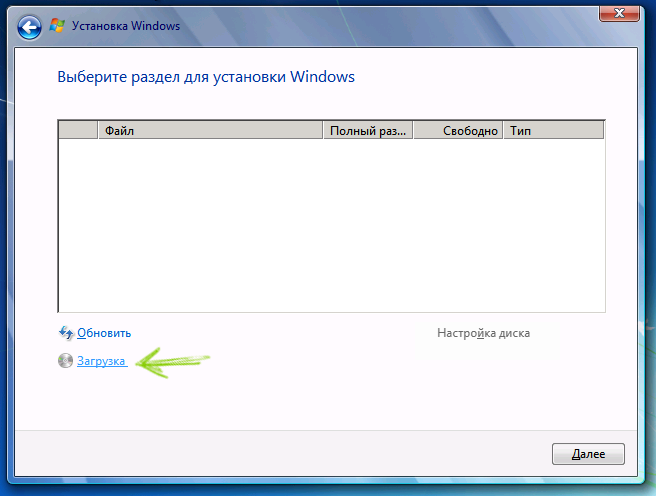
When you reach the screen that says “Where do you want to install Windows?” and no drives are listed:
- Click Load driver
- Click Browse
- Select the USB drive with the extracted driver folder
- Open the correct folder (sometimes called VMD, RST, or F6)
- Click OK, then Next
Windows Setup should now detect your internal SSD or hard drive, and the disk partitions will appear.
You can then continue the installation normally.
Solution 2: Change Storage Mode in BIOS/UEFI
In some cases, you can avoid loading drivers by changing the storage controller mode.
⚠️ This method can prevent an existing Windows installation from booting. Only use it if you are doing a clean install or understand the risks.
Steps
- Restart the computer and enter BIOS/UEFI (usually F2, Del, F10, or Esc).
- Look for settings such as:
- SATA Mode
- Storage Mode
- VMD Controller
- Intel RST
- Change:
- From RAID / Intel RST / VMD
- To AHCI
- Save changes and restart Windows Setup.
In AHCI mode, Windows often detects the drive without extra drivers.
If You Have an AMD System
If your computer uses an AMD processor, the issue may be related to:
- AMD RAID mode
- Missing AMD storage controller drivers
Visit your laptop or motherboard manufacturer’s support page and search for:
“SATA driver” or “RAID driver” + your model name
Load the driver during setup using the same Load driver steps described earlier.
Still No Drive Showing Up?
If the installer still doesn’t detect your storage, possible causes include:
- The SSD or hard drive has failed
- The drive is not properly connected (desktop systems)
- BIOS firmware needs an update
- The Windows installation USB is corrupted
At this point, hardware diagnostics may be needed.
When It’s Time for Professional Help
If you’ve tried loading drivers and adjusting BIOS settings but the drive still doesn’t appear, the issue may involve:
- Failing SSD or HDD hardware
- Motherboard storage controller problems
- Firmware-level configuration errors
Xelow.tech provides computer repair and IT support services across Canada and the United States, including Windows installation, data recovery guidance, and hardware diagnostics.
Getting a professional diagnosis can prevent further damage and reduce the risk of data loss.