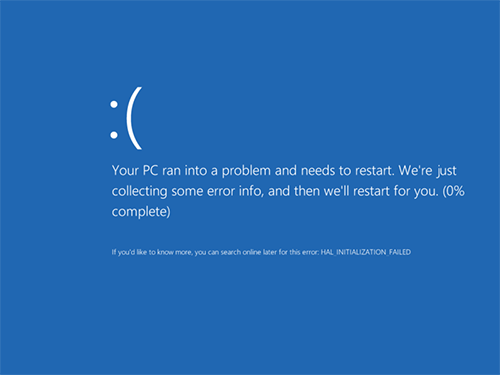

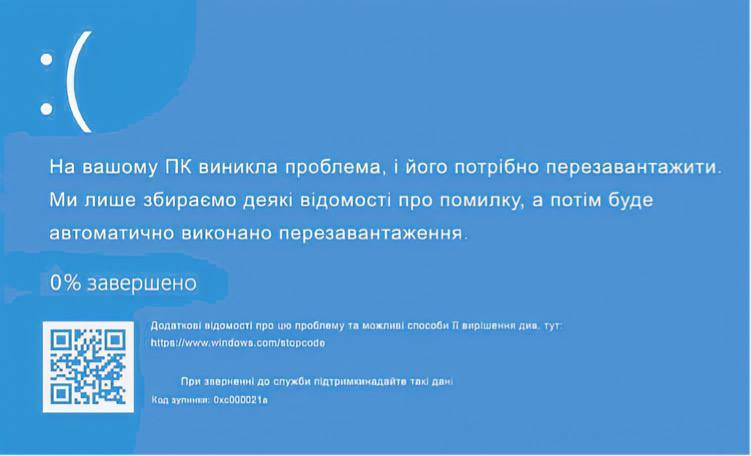
One of the common Windows 10 errors is a blue screen saying:
“Your PC ran into a problem and needs to restart”
with stop code 0xc000021a.
This error may appear:
- After installing Windows updates
- When attempting a System Restore
- After updating drivers
- After installing certain system-level programs or tweaks that modify system files
In this guide, we’ll go through possible ways to fix error 0xc000021a in Windows 10, depending on the situation. In most cases, one of these methods helps resolve the issue without reinstalling Windows.
System Recovery When Stop Code 0xc000021a Appears
Before moving on to the fixes, it’s important to understand where we’ll be performing them when Windows 10 shows the blue screen with error 0xc000021a during boot.
After several failed restarts, Windows will show:
- “Preparing Automatic Repair”
- Then “Diagnosing your PC”
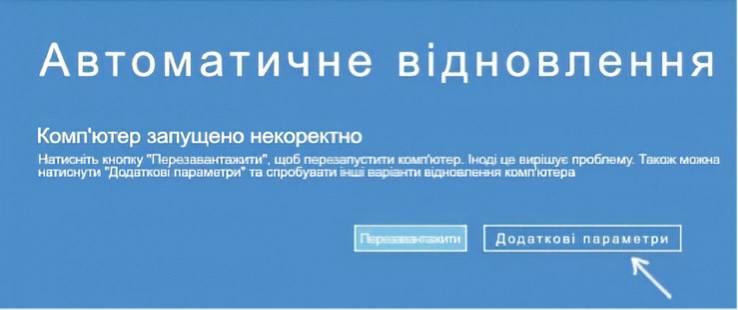
After diagnostics, you’ll see a screen titled:
“Automatic Repair” with the message
“Your PC did not start correctly.”
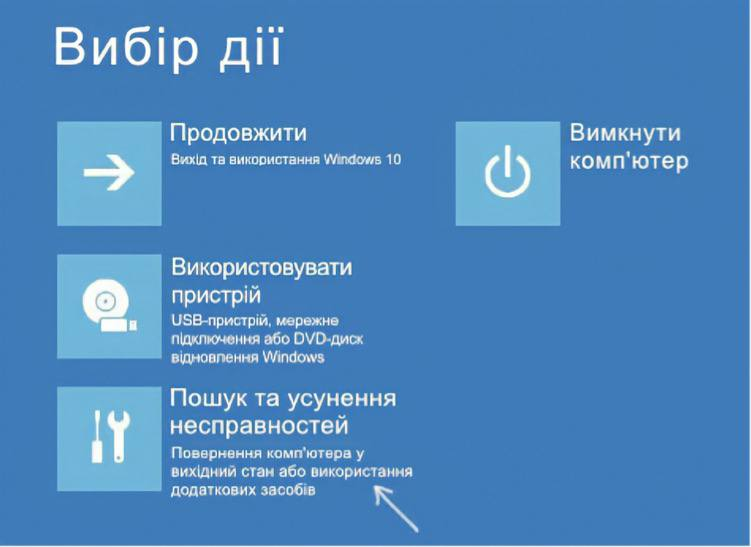
This is exactly the screen we need — click Advanced options.
This will open the Windows Recovery Environment (WinRE) with tools that can help restore your computer or laptop.
There are other ways to access the recovery environment (for example, using a bootable USB drive) if this method does not work in your case.
Method 1 — Disable Driver Signature Enforcement
One of the first things to try when you see stop code 0xc000021a is temporarily disabling driver signature enforcement.
This method often works if the error started after:
- Installing updates (especially drivers)
- Performing a System Restore
- Installing certain low-level software
Steps:
1️⃣ In Advanced options, go to:
Troubleshoot → Advanced options → Startup Settings, then click Restart
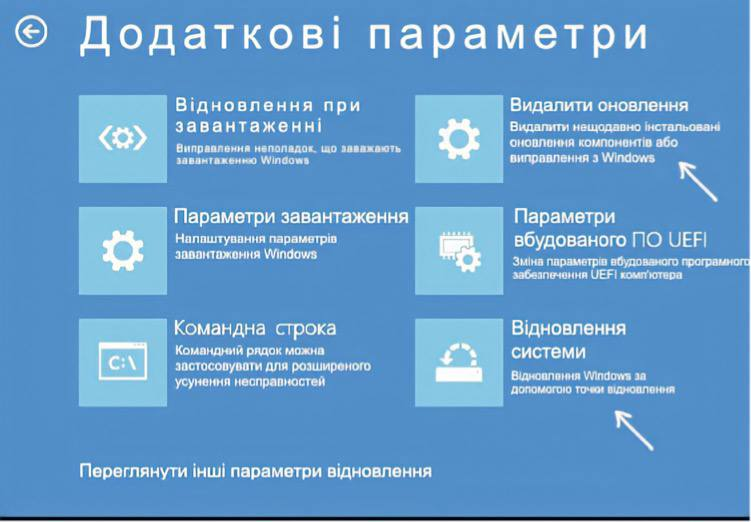
2️⃣ After restarting, you’ll see the Startup Settings screen again.
3️⃣ Press F7 (or Fn + F7 on some laptops) to select:
Disable driver signature enforcement
4️⃣ If Windows starts successfully this time, wait until the system fully loads.
If Windows is finishing updates or software installation, allow it to complete.
5️⃣ Restart the computer normally.
If this method worked, Windows should now boot without the blue screen.
6️⃣ If Windows only starts when signature enforcement is disabled, but fails again on a normal restart:
- Roll back recently updated drivers
- Uninstall recently installed antivirus programs
- Remove third-party tools that install virtual device drivers
Repairing System Files When Error 0xc000021a Is Caused by Corruption
This error can also be caused by damaged Windows system files. In particular, corruption of csrss.exe or winlogon.exemay trigger stop code 0xc000021a.
Here’s how to fix it.
Steps:
1️⃣ In the recovery environment, go to:
Troubleshoot → Advanced options → Command Prompt
2️⃣ In Command Prompt, enter the following command:
sfc /scannow /offbootdir=C:\ /offwindir=C:\Windows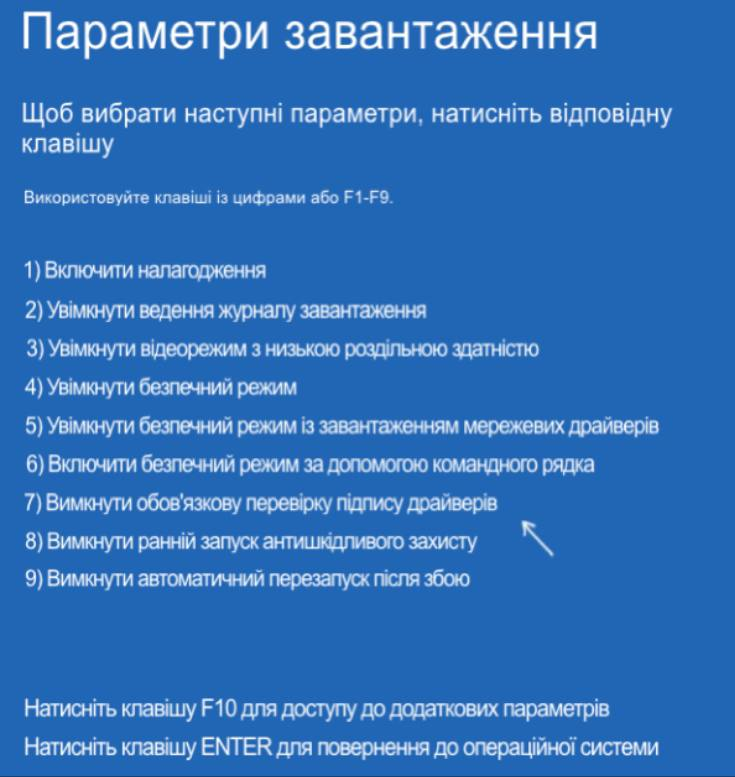
⚠️ Simply running sfc /scannow without the offline parameters will not work correctly from the recovery environment.
3️⃣ Press Enter and wait for the process to finish.
This scan may take quite a long time.
4️⃣ If successful, you will see a message similar to:
“Windows Resource Protection found corrupt files and successfully repaired them.”
If that happens, close Command Prompt and restart your computer.
If system file corruption was the cause, the 0xc000021a blue screen should no longer appear.
System Restore and Removing Updates
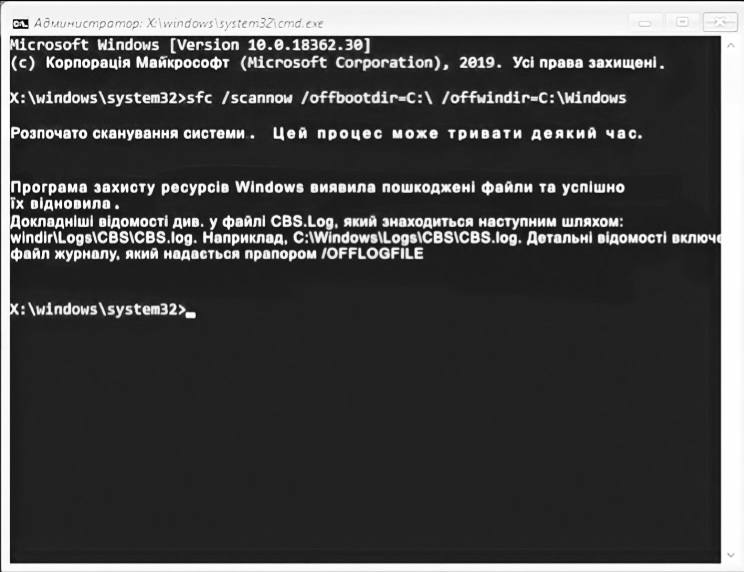
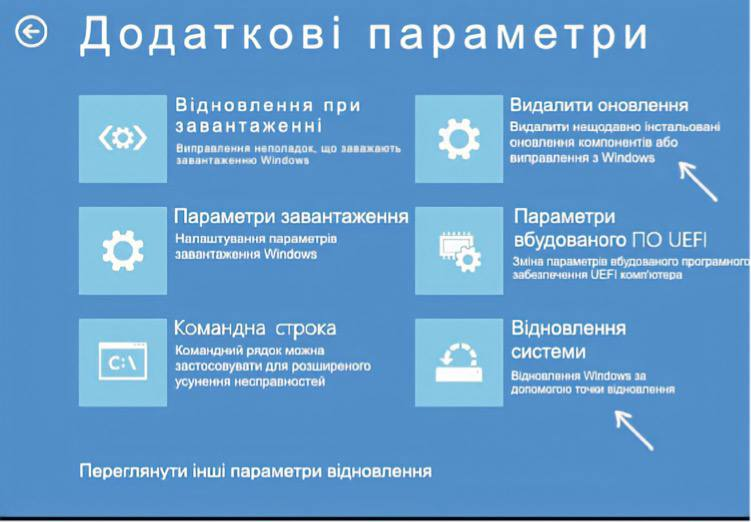
If the previous methods did not help, pay attention to two more options inside Advanced options:
🔹 System Restore
This allows you to restore Windows using a restore point.
If restore points are available, try this option — even if the issue originally appeared after a restore attempt from inside Windows.
🔹 Uninstall Updates
This option allows you to remove recently installed Windows 10 updates that may have caused the error.
If Nothing Helps
If none of the above methods work, the remaining options are:
- Attempting manual Windows registry recovery (difficult in newer Windows versions because automatic registry backups are no longer stored)
- Resetting Windows to its original state
To reset Windows, open:
Troubleshoot → Reset this PC
This option allows you to reinstall Windows automatically. You can choose to keep personal files, but installed programs will be removed.
More details are covered in the guide: How to Reset Windows 10 or Automatically Reinstall the OS.