
iPhone Won’t Turn On — Common Causes and Solutions
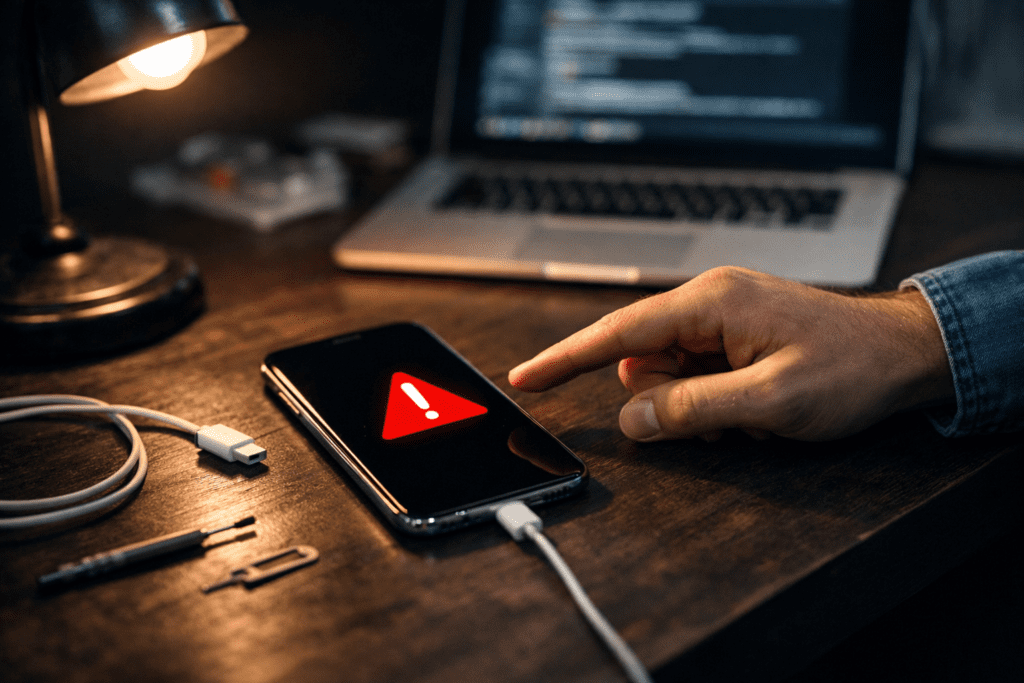
If your iPhone won’t turn on and the screen stays black or shows an error message, don’t panic. In many cases, the issue can be fixed at home using one of the methods below.
This guide works for most iPhone models, including:
- iPhone 6 / 7 / 8 / SE
- iPhone X / XR / XS
- iPhone 11 / 12 / 13 / 14 / 15
If none of these steps help, the problem may be hardware-related, and professional repair is recommended.
🔋 Step 1: Charge Your iPhone
A completely drained battery is the most common reason an iPhone won’t turn on.
What to do:
- Connect your iPhone to a wall charger (not a laptop USB port).
- Leave it charging for at least 20–30 minutes.
- Do not try to turn it on during this time.
- After 30 minutes, try turning it on again.
Important tips:
- Try a different charging cable or adapter
- Inspect the charging port for dust or debris
(even small lint particles can prevent charging) - Clean the port carefully with compressed air or a wooden toothpick
If the battery was fully drained, the screen may stay black for several minutes — this is normal.
🔁 Step 2: Force Restart (Hard Reset)
Sometimes an iPhone freezes completely, and the power button stops responding. A force restart can fix this without deleting any data.
For iPhone 8, X, 11, 12, 13, 14, 15:
- Quickly press Volume Up and release
- Quickly press Volume Down and release
- Press and hold the Side button
- Release when the Apple logo appears
For iPhone 7 / 7 Plus:
- Press and hold Volume Down + Power buttons together
- Release when you see the Apple logo
For iPhone 6 / 6s / SE (Home button models):
- Press and hold Home + Power buttons together
- Hold for 10–20 seconds until the Apple logo appears
👉 This does not erase data — it simply reboots the device.
💻 Step 3: Restore iOS Using a Computer
If your iPhone still won’t turn on, the issue may be related to iOS system corruption.
Signs you may need a restore:
- iPhone shows a cable pointing to a computer
- iPhone is stuck on a black screen and won’t respond
What you need:
- A Mac (Finder) or Windows PC (iTunes)
- USB cable
How to restore:
- Connect your iPhone to the computer
- Open:
- Finder (macOS Catalina or newer)
- iTunes (Windows or older macOS)
- Put iPhone into Recovery Mode:
- Follow the same button steps as force restart
- Keep holding until the recovery screen appears
- Choose Update or Restore
⚠️ Restore will erase all data
You can recover data only from iCloud or backup
❗ When None of These Steps Work
If your iPhone still won’t turn on, the issue is likely hardware-related, such as:
- Dead battery
- Charging port damage
- Water damage
- Logic board failure
In this case, professional diagnostics and repair are required.
🛠 Professional iPhone Repair in Canada & the USA
At Xelow.tech, we provide fast and reliable iPhone diagnostics and repair services, including:
- Battery replacement
- Charging port repair
- Water damage recovery
- Logic board repair
📍 Serving customers across Canada and the United States
📞 Contact us today to bring your iPhone back to life
❓ FAQ
Why is my iPhone screen black but the phone is on?
This may be caused by a system crash, display issue, or low battery.
Can a dead iPhone battery prevent it from turning on?
Yes. A fully drained battery may take 20–30 minutes before showing any signs of life.
Will force restart delete my data?
No. A force restart does not erase data.
Should I go to a repair shop if my iPhone won’t turn on?
Yes, if charging, force restart, and restore do not work, professional repair is recommended.