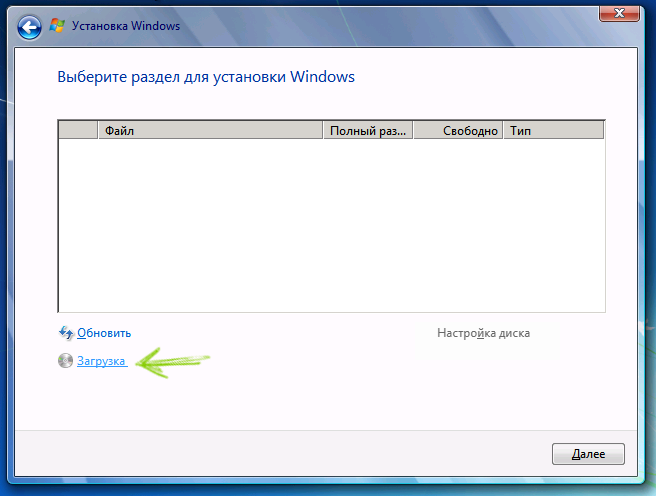

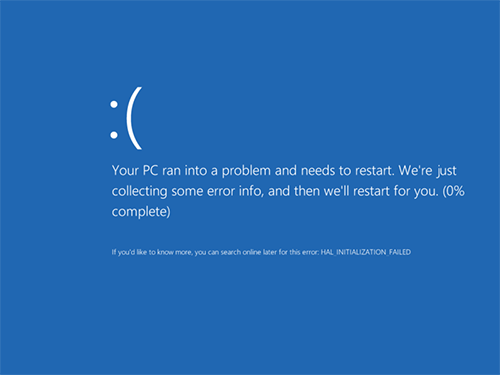
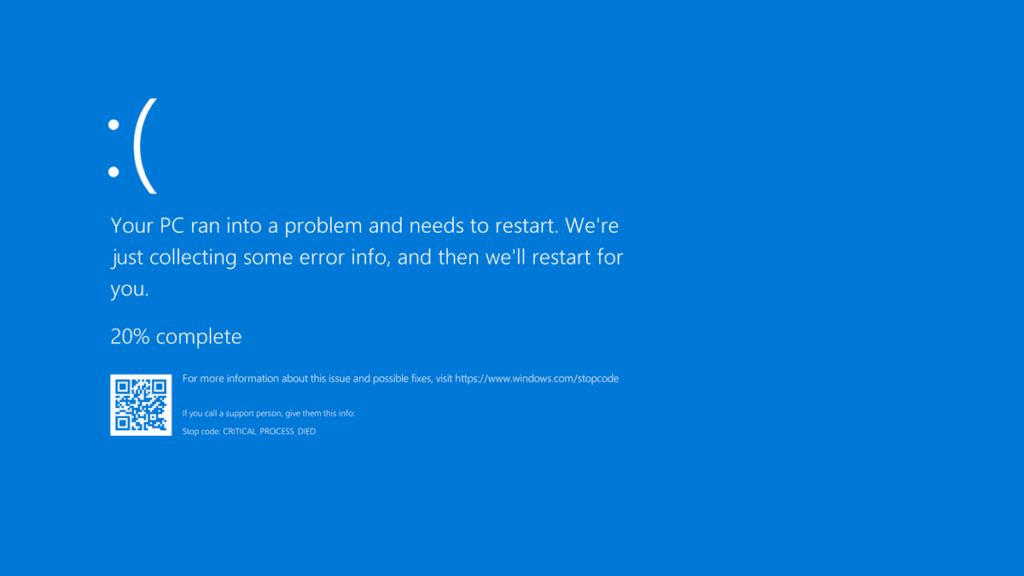
The Windows Blue Screen of Death (BSOD) is one of the most common and frustrating errors users encounter. More than just a nuisance, it is a critical system crash that stops your computer from functioning to prevent potential damage.
In most cases, a BSOD occurs when Windows encounters a “STOP Error,” causing the system to halt immediately.
How to Solve the Blue Screen Error Yourself
If you are facing this issue, don’t panic. While the screen filled with white text on a blue background looks intimidating, many BSOD issues can be resolved with a few simple steps.
1. Restart Your Computer
The first and simplest step is to reboot your PC. Sometimes, a BSOD is caused by a one-time glitch in hardware or software. If your computer restarts and functions normally, you might not see the error again.
2. Check Recently Added Hardware and Drivers
Did you recently plug in a new webcam, printer, or graphics card? Faulty hardware or incompatible drivers are leading causes of system crashes.
- Disconnect new devices: Unplug any recently added hardware and see if the error persists.
- Roll back drivers: If you recently updated a driver (or used an automatic driver updater), this could be the culprit. Use System Restore to return your Windows to a previous working state.
3. Use Safe Mode
If the Blue Screen happens every time you boot up, you won’t be able to uninstall problematic software normally. In this case, try booting into Safe Mode. This allows you to start Windows with only the essential processes, making it easier to delete suspicious programs or faulty drivers.
4. Malware and Hardware Failures
A BSOD isn’t always about software. It can also be triggered by:
- Viruses and Malware: Malicious code can corrupt system files.
- Hardware Issues: Failing RAM sticks, an overheating GPU, or a dying hard drive.
- System File Corruption: Errors within core Windows libraries.
Related Guides:
- How to fix PAGE_FAULT_IN_NONPAGED_AREA in Windows
- Troubleshooting nvlddmkm.sys and dxgkrnl.sys errors
- Fixing Inaccessible_boot_device in Windows 10/11
Professional Assistance for BSOD
The tips above cover the most common reasons why a BSOD appears. However, if you’ve tried these steps and your computer still crashes, it may indicate a deeper hardware failure or a corrupted OS that requires a clean reinstall.
If you are in need of expert help, our team at Xelow.tech is ready to assist. We provide professional diagnostics to determine whether you need a system optimization or a hardware replacement.
Still need expert help? Contact our support team today to get your PC back up and running!