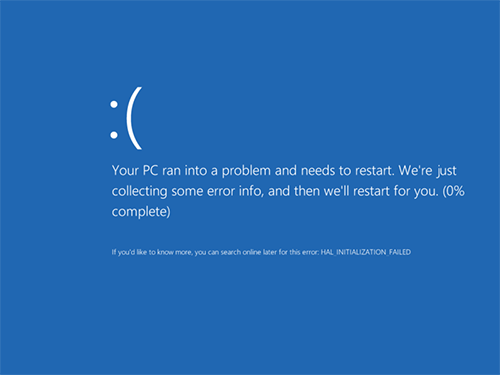

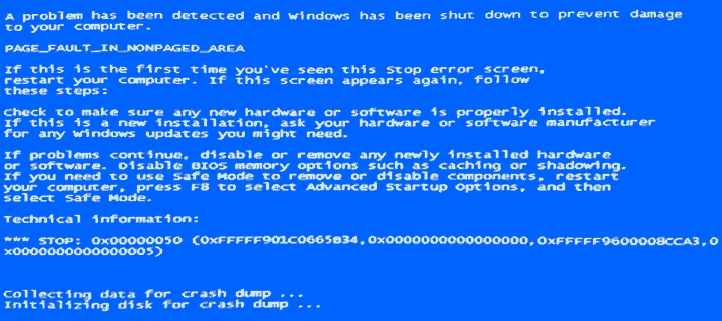
One of the common Blue Screen of Death (BSOD) errors in Windows is STOP 0x00000050, accompanied by the message PAGE_FAULT_IN_NONPAGED_AREA.
This error can appear in all modern versions of Windows, including:
- Windows 10
- Windows 8.1 / Windows 8
- Windows 7
- and earlier versions
Sometimes the error message also includes the name of a system file or driver responsible for the crash. If it does not appear directly on the screen, you can identify it by analyzing the memory dump using tools such as:
- BlueScreenView
- WhoCrashed
These tools will be mentioned later in this guide.
Some of the most common files associated with this BSOD include:
- win32k.sys
- atikmdag.sys
- hal.dll
- ntoskrnl.exe
- ntfs.sys
- wdfilter.sys
- applecharger.sys
- tm.sys
- tcpip.sys
In this guide, we’ll cover the most common causes of the STOP 0x00000050 error and the possible ways to fix it. We will also list official Microsoft fixes available for certain cases.
What Causes PAGE_FAULT_IN_NONPAGED_AREA
The PAGE_FAULT_IN_NONPAGED_AREA (STOP 0x00000050) error usually occurs because of problems related to:
- faulty or incompatible drivers
- hardware issues (often RAM, but not only)
- malfunctioning peripheral devices
- Windows service errors
- incompatible software (especially antivirus software)
- corrupted Windows system components
- errors on HDD or SSD drives
In simple terms, this error happens when the system tries to access memory that should not be accessed, or when a driver incorrectly handles memory.
First Steps to Fix PAGE_FAULT_IN_NONPAGED_AREA
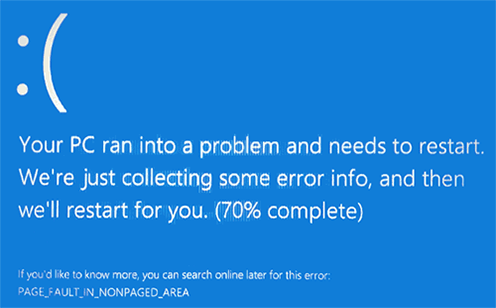
When you encounter a STOP 0x00000050 blue screen, the first step is to think about what changed on the system before the error appeared.
This is especially important if the error started appearing after installing something new.
Note:
If the error appeared only once and never happened again, it may not require any action.
Common Situations That Can Cause This Error
Below are some of the most common scenarios.
Installing New Hardware
This includes both physical hardware and virtual devices, such as virtual drive software.
Possible causes:
- incompatible hardware
- faulty drivers
What to try:
- update drivers
- install an older driver version
- temporarily disconnect the device and test the system
Installing or Updating Drivers
The error may appear after:
- automatic driver updates
- installing driver packs
- manual driver updates
You can try rolling back the driver in Device Manager.
Often the file mentioned in the error message can help identify the problematic driver. A quick internet search for the file name may reveal which driver it belongs to.
Later in this guide, we will show an easier way to detect the driver automatically.
Installing or Removing Antivirus Software
Some antivirus programs interfere with system drivers.
Try temporarily removing the antivirus software and testing the system.
Malware or Viruses
Malicious software can also cause system crashes.
Run a scan using:
- a bootable antivirus USB
- an offline antivirus scanner
System Tweaks or Service Changes
If you modified system settings, disabled services, or used system tweaking tools, try restoring the system to an earlier state.
Using a System Restore point may resolve the problem.
Power Supply or Hardware Stability Problems
Symptoms may include:
- system not starting on the first attempt
- sudden shutdowns
- unstable performance
Possible causes:
- faulty RAM
- failing storage drive
What you can try:
- run a memory test
- check the hard drive for errors
- temporarily disable the Windows paging file
These suggestions are not exhaustive, but they often help identify what changed before the error started appearing.
Common Cases and Their Solutions
Now let’s review several specific scenarios where this error often appears.
PAGE_FAULT_IN_NONPAGED_AREA When Running uTorrent
In Windows 10, this error sometimes appears when running uTorrent, especially if the program starts automatically with Windows.
The issue is often related to third-party antivirus firewalls.
Possible solutions:
- disable the firewall in your antivirus
- switch to another torrent client such as BitTorrent
Windows 10 Core Isolation Issue
Another Windows 10 feature that may trigger this error is Core Isolation / Memory Integrity.
You can disable it:
- Open Windows Security
- Go to Device Security
- Select Core Isolation Details
- Disable Memory Integrity
If Windows only starts in Safe Mode, use the following command instead.
Open Command Prompt as Administrator and run:
REG ADD “HKLM\SYSTEM\CurrentControlSet\Control\DeviceGuard\Scenarios\HypervisorEnforcedCodeIntegrity” /v Enabled /t REG_DWORD /d 0 /f
Then restart the computer.
AppleCharger.sys Error
If the BSOD references AppleCharger.sys, it often occurs on Gigabyte motherboards.
This usually happens when the On/Off Charge utility is installed on an unsupported system.
Solution:
Uninstall the On/Off Charge software via Control Panel → Programs and Features.
Errors Involving win32k.sys, hal.dll, ntfs.sys, ntoskrnl.exe
If these files appear in Windows 7 or Windows 8 systems, try the following:
- Disable the Windows paging file
- Restart the computer
- Observe whether the error returns
- Re-enable the paging file afterward
You should also check the hard drive for errors.
Errors Involving tcpip.sys or tm.sys
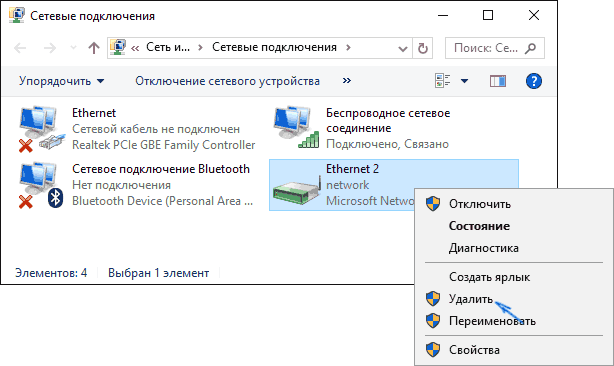
These errors sometimes occur because of network bridge configurations.
To check:
- Press Win + R
- Type:
ncpa.cpl
- Look for Network Bridge in the connection list
If present and unnecessary, remove it.
Updating or rolling back network adapter or Wi-Fi drivers may also help.
atikmdag.sys Error (AMD Radeon Drivers)
The file atikmdag.sys belongs to AMD Radeon graphics drivers.
Possible fixes:
- disable Windows Fast Startup
- perform a clean driver installation
You can use Display Driver Uninstaller (DDU) to completely remove old drivers before reinstalling.
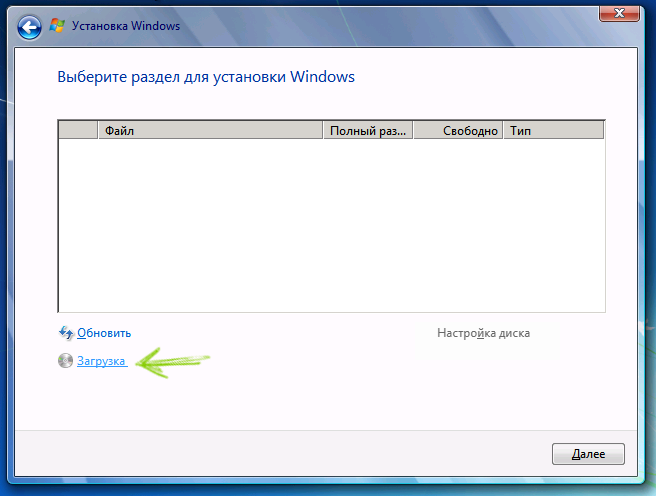
Error During Windows Installation
If the blue screen appears while installing Windows, the problem may be related to RAM modules.
Try:
- removing one RAM stick
- installing Windows again
Error When Upgrading Windows
If the error appears when upgrading from Windows 7 or Windows 8 to Windows 10, a clean installation of Windowsmay solve the problem.
BIOS Compatibility Issues
Some motherboard models (for example certain MSI boards) may show this error after upgrading Windows.
Updating the BIOS from the official manufacturer website may help.
Cleaning Temporary Files
Sometimes the issue may be caused by corrupted temporary files.
Try clearing the folder:
C:\Users\YourUserName\AppData\Local\Temp
Identifying the Faulty Driver Automatically
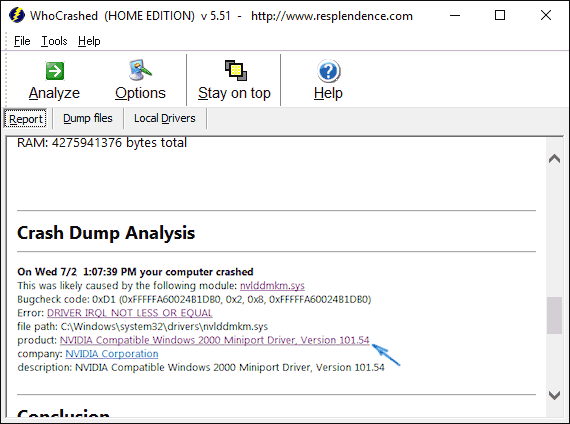
A simple way to identify the problematic driver is using the free tool WhoCrashed.
Official website:
https://www.resplendence.com/whocrashed
The tool analyzes memory dumps and shows the likely driver responsible for the crash.
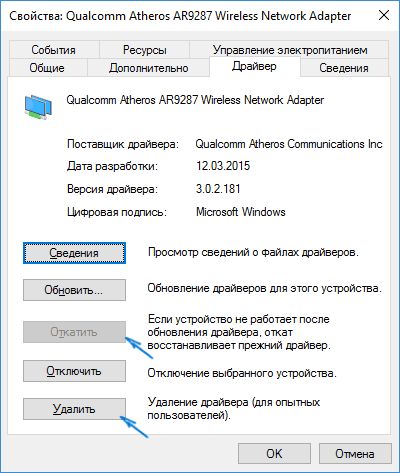
After identifying the driver, you can:
- roll it back in Device Manager
- uninstall it
- reinstall the correct version from the official source
Checking Windows RAM
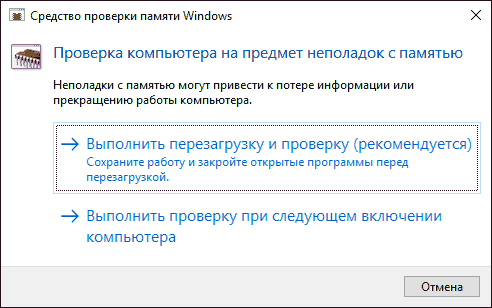
Another useful step is testing system memory.
You can use the built-in Windows tool:
Windows Memory Diagnostic
Location:
Control Panel → Administrative Tools → Windows Memory Diagnostic
Official Microsoft Fixes for STOP 0x00000050
Microsoft has released several official hotfixes for specific cases of this error.
These fixes are not universal and apply only to certain scenarios.
Examples:
- Windows 8 / Server 2012 – storport.sys
- Windows 7 / Server 2008 – srvnet.sys
- Windows XP – sys errors
To download a fix:
- Open the corresponding Microsoft support page
- Click Hotfix Download Available
- Accept the terms and download the fix
Microsoft also provides general documentation for the error code 0x00000050.
When Professional Help May Be Needed
If none of the solutions above resolve the issue, the problem may be related to:
- faulty RAM modules
- failing SSD or hard drive
- corrupted Windows system components
- hardware driver conflicts
In these cases, professional diagnostics can help identify the exact cause.
Technicians at Xelow.tech provide system diagnostics and repair services for computers experiencing persistent Blue Screen errors.