

A blue screen error related to nvlddmkm.sys, dxgkrnl.sys, or dxgmms1.sys is a common Windows problem usually caused by NVIDIA graphics drivers. In most cases, the issue appears as a BSOD (Blue Screen of Death) with error code 0x00000116 (VIDEO_TDR_ERROR).
This guide explains why the error happens and how to fix it safely.
What Does the nvlddmkm.sys BSOD Mean?
The typical error scenario looks like this:
- The screen goes black
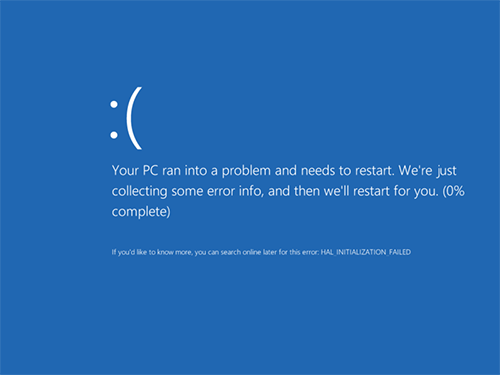
- A blue screen appears
- Windows reports an error related to
nvlddmkm.sys - Sometimes
dxgkrnl.sysordxgmms1.sysis shown instead - The system may display: “Display driver stopped responding and has recovered”
This error commonly occurs on Windows 7 x64 and Windows 8 x64 systems and is directly related to NVIDIA GPU drivers.
Common Causes of the Error
- Corrupted or outdated NVIDIA drivers
- Incorrect driver installation
- GPU overload or instability
- Overclocked GPU or video memory
- Multiple applications using the GPU simultaneously
How to Fix nvlddmkm.sys BSOD (Recommended Method)
This method works in most cases and is safer than manually replacing system files.

Step 1: Download Required Tools
- Driver Sweeper – for complete NVIDIA driver removal
- CCleaner – for registry cleanup
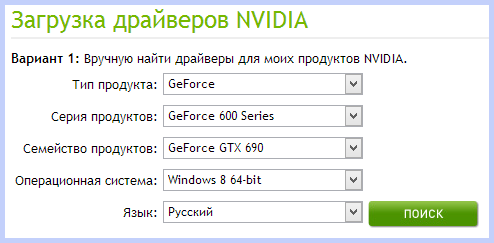
- Latest NVIDIA WHQL drivers from the official NVIDIA website
Step 2: Boot Into Safe Mode
- Windows 7: press F8 during startup
- Windows 8: use Advanced Startup options
Step 3: Remove NVIDIA Drivers Completely
- Run Driver Sweeper
- Remove all NVIDIA components (graphics, HDMI audio, PhysX, etc.)
- While still in Safe Mode, run CCleaner to clean the registry
- Restart the computer
Step 4: Install Fresh NVIDIA Drivers
After rebooting:
- Either allow Windows Device Manager to install drivers automatically
- Or manually install the latest NVIDIA WHQL driver
Restart the system after installation.
Why This Fix Works
Starting from NVIDIA WHQL version 310.09 and newer, this BSOD issue is usually resolved when drivers are installed cleanly. A fresh installation removes corrupted files that cause nvlddmkm.sys crashes.
Alternative Methods (Less Reliable)
Some users suggest:
- Reinstalling NVIDIA drivers without cleaning old ones
- Manually extracting and replacing
nvlddmkm.sysinSystem32\drivers
⚠️ These methods often do not fix the root cause and may create additional system instability.
Additional Factors That Can Trigger the Error
- GPU or memory overclocking
- Mining software running in the background
- Heavy GPU load from multiple applications
If the error persists, hardware diagnostics may be required.
Final Notes
The nvlddmkm.sys BSOD error is almost always driver-related. A clean removal and proper reinstallation of NVIDIA drivers resolves the issue in most cases.
If you continue to experience crashes, professional diagnostics may be needed to check GPU stability or hardware faults.
Great job on this informative article. I appreciate how practical the
site is.
Pingback: Fix PAGE_FAULT_IN_NONPAGED_AREA BSOD in Windows