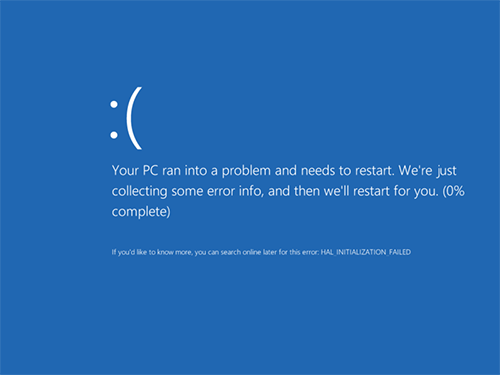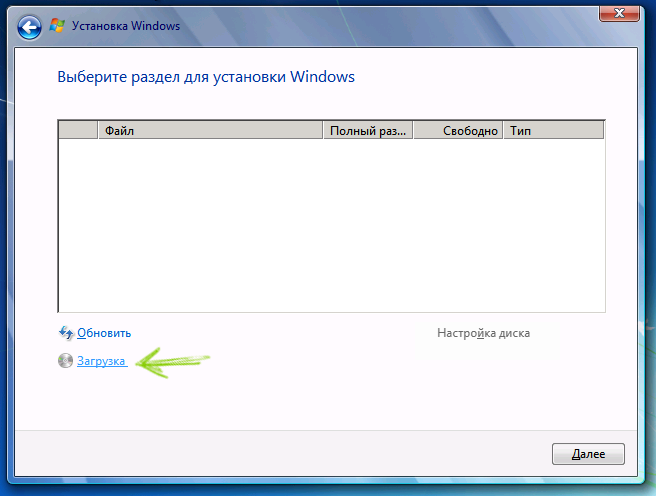

When installing Windows, running system recovery tools, or using diagnostic utilities, you may need your computer to boot from a USB drive instead of the internal disk.
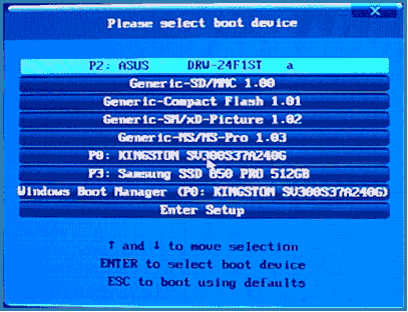
This guide explains how to boot from USB using BIOS or UEFI settings, how to use the Boot Menu, and what to do if your system does not detect the USB drive.
When You Might Need to Boot From USB
Booting from a USB drive is commonly required to:
- Install or reinstall Windows 10 or Windows 11
- Run antivirus or malware removal tools
- Recover a system that won’t start
- Use hardware diagnostic or disk repair utilities
- Reset a forgotten Windows password (with authorized tools)
In many of these cases, you do not need to permanently change BIOS settings — you can simply use the one-time Boot Menu.
Method 1: Use the Boot Menu (Easiest Option)
For one-time tasks, the Boot Menu is the fastest and safest method.
How to open the Boot Menu
- Insert the bootable USB drive before turning on the computer.
- Turn on or restart the computer.
- Immediately press the Boot Menu key repeatedly.
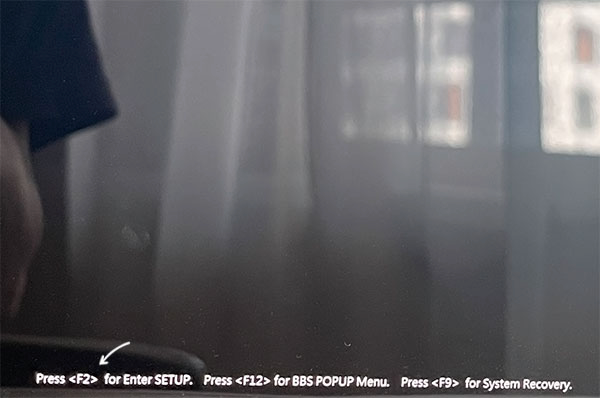
Common Boot Menu keys:
- F12 – Dell, Lenovo, many desktops
- F9 – HP
- Esc – Some ASUS and Toshiba systems
- F11 – MSI and others
You may briefly see a message like “Press F12 for Boot Menu.”
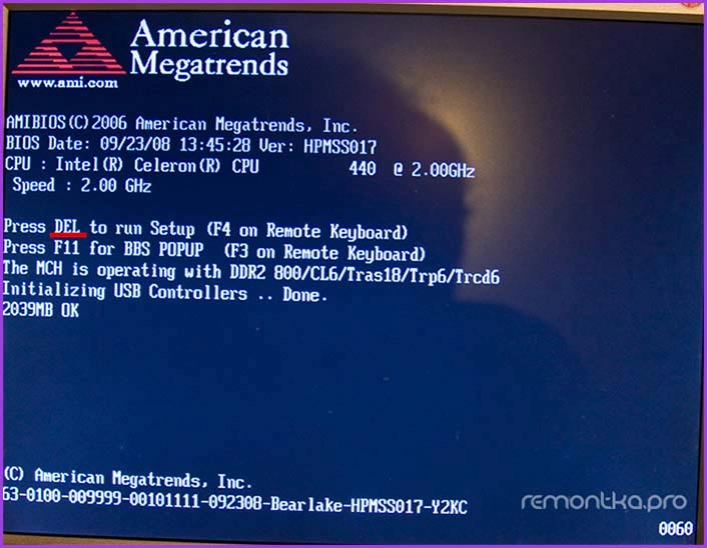
- From the list, select your USB drive (it may be listed by brand name).
- Press Enter.
The computer will boot from the USB drive once, then return to normal boot behavior after restart.
⚠️ If the USB drive does not appear, see the troubleshooting section below.
Method 2: Change Boot Order in BIOS or UEFI
If you need the system to always try USB first (or the Boot Menu doesn’t work), you can change the boot order in BIOS/UEFI.
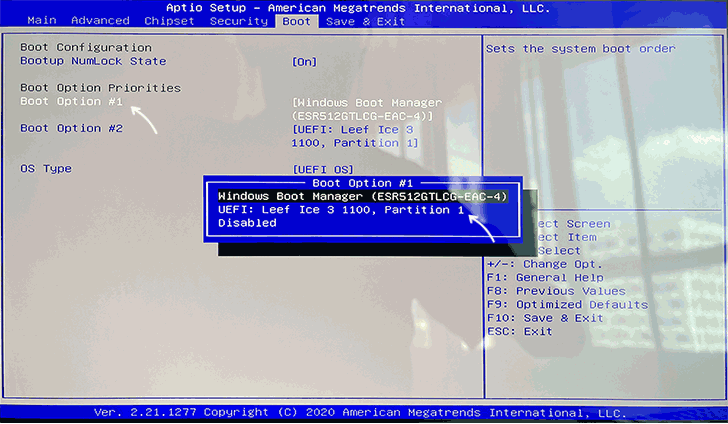
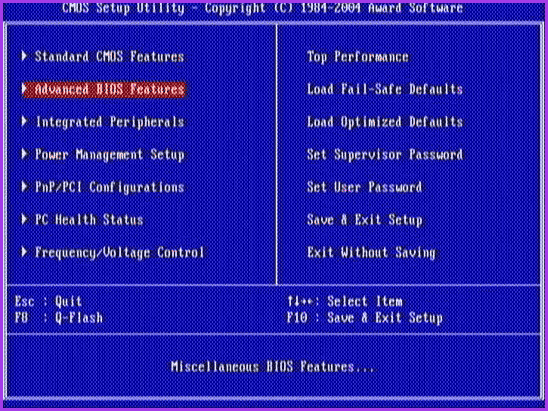
Step 1: Enter BIOS or UEFI Setup
- Turn off the computer.
- Turn it on and immediately press one of these keys repeatedly:
- Delete (Del)
- F2
- F10
- Esc
The correct key usually appears briefly on screen (e.g., “Press F2 to enter Setup”).
If Windows loads too quickly, restart and try again.
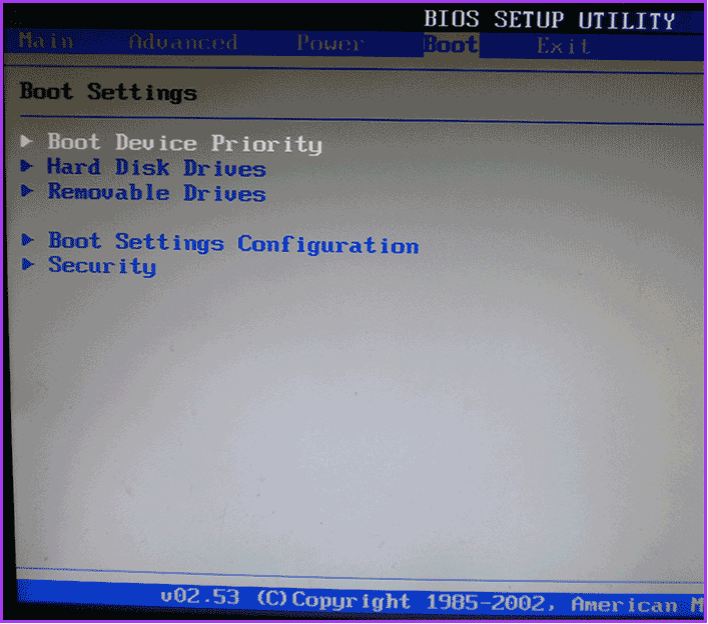
Step 2: Find Boot Settings
Inside BIOS/UEFI, look for a section called:
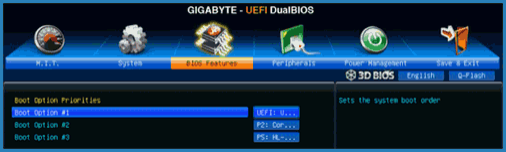
- Boot
- Boot Options
- Boot Order
- Boot Priority
Modern systems often support mouse navigation. Older ones require keyboard arrows and Enter.
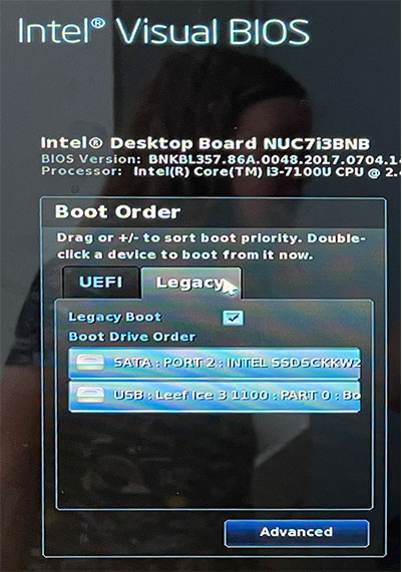
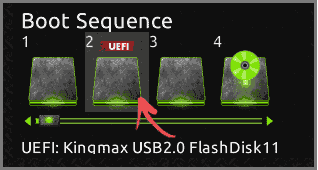
Step 3: Set USB as First Boot Device
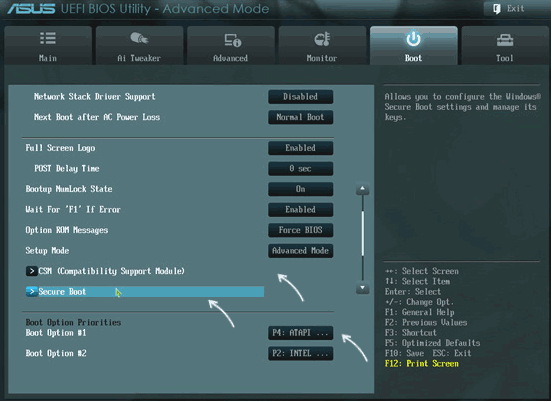
You may see one of two layouts:
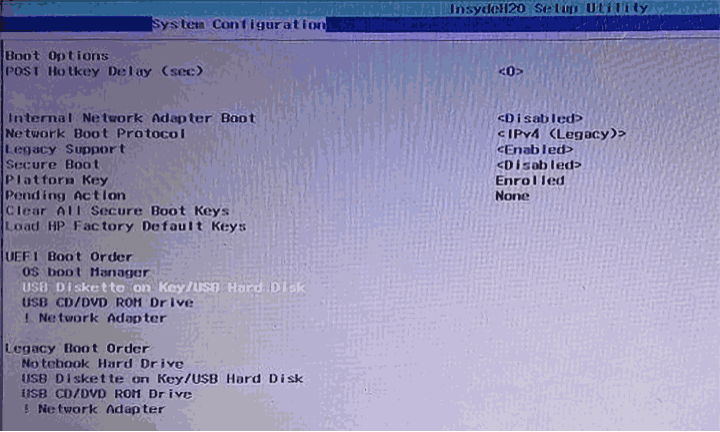
Option A — Boot Device List
You’ll see a list such as:
- Windows Boot Manager
- Internal SSD/HDD
- USB Storage Device
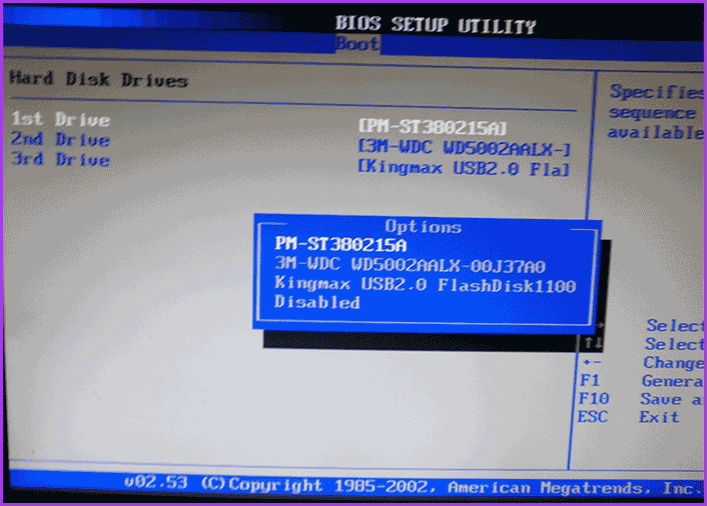
Move the USB device to the top using:
- F5/F6 keys
+/–keys- Drag-and-drop with a mouse (on some systems)
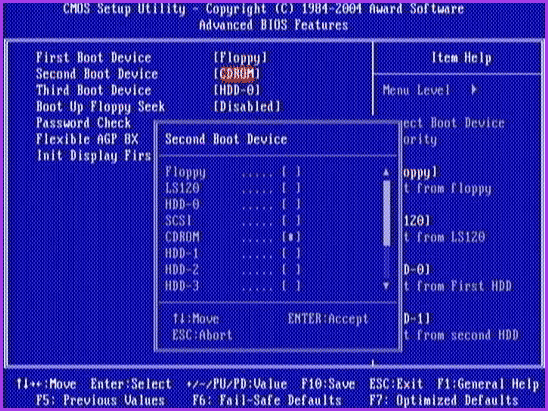
Option B — Boot Option Entries
You may see:
- Boot Option #1
- Boot Option #2
Set Boot Option #1 to your USB drive.
Step 4: Save and Exit
Press F10 (common) or go to Exit → Save Changes and Exit.
Confirm with Yes. The computer will restart and boot from USB.
UEFI vs Legacy Mode (Common Problem)
If your USB drive does not appear, the issue is often a UEFI/Legacy mismatch.
Modern Windows installers use UEFI mode. Older tools may require Legacy/CSM mode.
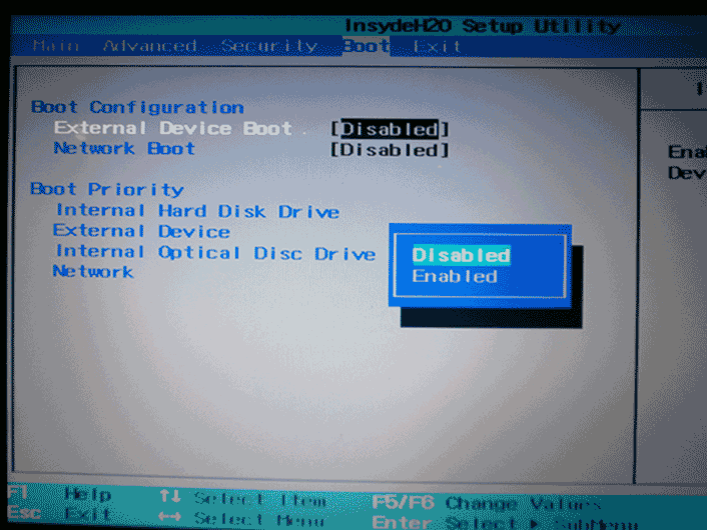
What to check:
- In BIOS/UEFI, find Boot Mode, UEFI/Legacy Boot, or CSM
- Try switching between:
- UEFI
- Legacy or CSM Enabled
⚠️ Changing this setting can prevent your installed OS from booting if done incorrectly. If unsure, revert to the original setting.
Booting From USB Without Entering BIOS (Windows 11/10)
On many UEFI systems, you can boot from USB through Windows:
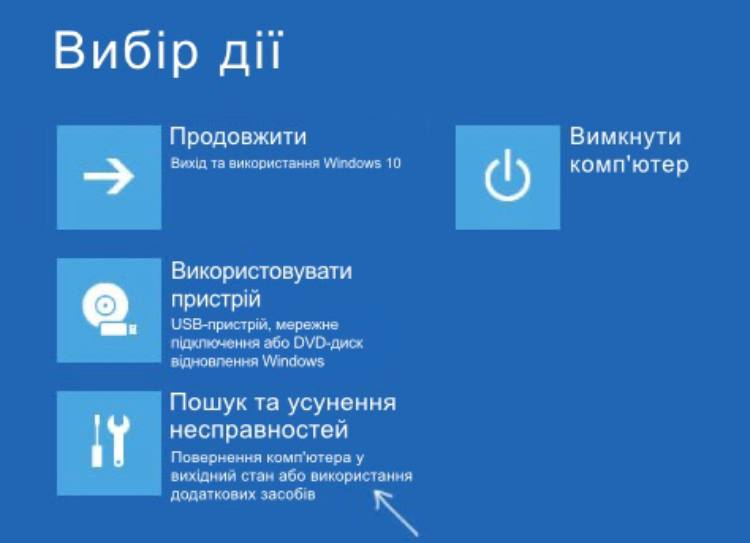
- Insert the bootable USB drive.
- Open Start → Power.
- Hold Shift and click Restart.
- Select: Troubleshoot → Advanced Options → UEFI Firmware Settings → Restart
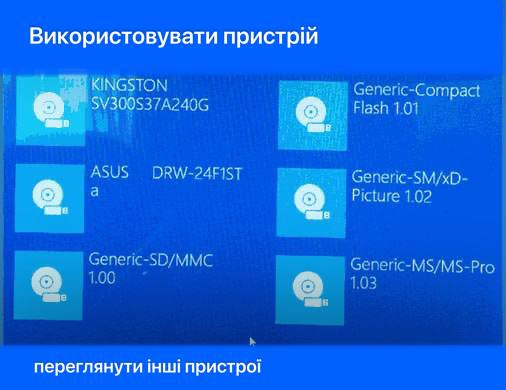
Or choose:
Use a device → USB Storage Device
The PC will reboot directly from the USB drive.
What If You Can’t Enter BIOS?
Modern systems with Fast Startup may skip the key press window.
Disable Fast Startup
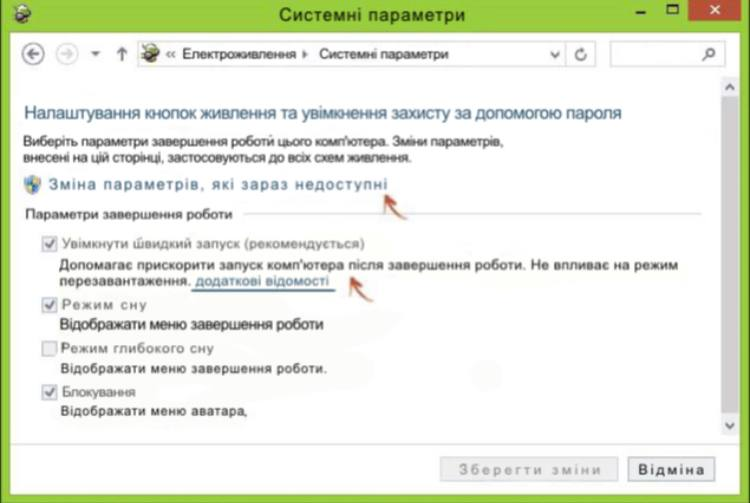
- Open Control Panel → Power Options
- Click Choose what the power buttons do
- Click Change settings that are currently unavailable
- Uncheck Turn on fast startup
- Save changes and restart
Now try entering BIOS again using Del or F2.
If Your Computer Still Won’t Boot From USB
Here are the most common causes:
- The USB drive is not properly made bootable
- USB port issue (try a rear motherboard port on desktops)
- Secure Boot blocking the device
- Incorrect UEFI/Legacy setting
- Corrupted installer files
⚠️ Important: Creating bootable media incorrectly can cause installation errors or data loss. Always back up important files before reinstalling Windows.
When DIY Doesn’t Work
If your system still won’t boot from USB, there may be:
- Firmware configuration issues
- Failing storage hardware
- Motherboard USB controller problems
In these cases, professional diagnostics can save time and prevent further damage. Xelow.tech provides computer repair and IT support services across Canada and the United States, including OS recovery and hardware troubleshooting.