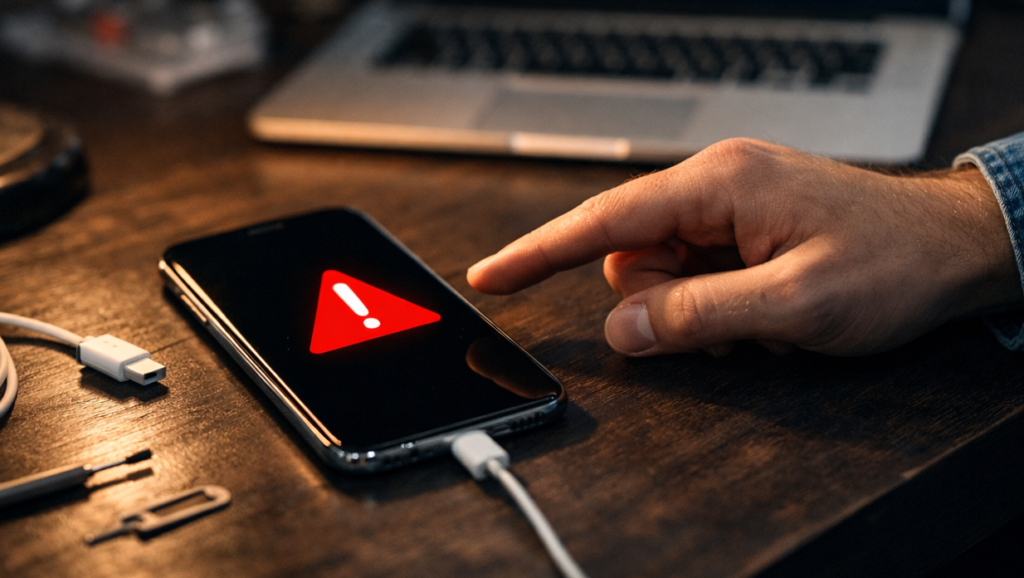

One of the most common smartphone issues — on both Android and iPhone — is the screen turning off during phone calls or voice calls in messaging apps (WhatsApp, Messenger, Telegram, etc.).
In this guide, we’ll explain why this happens and walk you through practical solutions you can try right away.
The Proximity Sensor (Most Common Cause)
In most cases, the issue is related to the proximity sensor.
This sensor is designed to turn off the screen when you hold the phone close to your ear during a call — to prevent accidental touches.
However, the screen may turn off even when the phone isn’t near your face if:
- Your hand or fingers accidentally cover the proximity sensor
- The sensor is dirty or blocked by:
- a phone case
- a poorly fitted or peeling screen protector
- dust or grease buildup
- There are cracks in the glass near the sensor area
- The sensor itself is damaged (after drops, water exposure, or low-quality repairs)
Where is the proximity sensor located?
Usually, it’s at the top of the phone near the front camera. On some low-cost models, the front camera may be used instead of a dedicated sensor.
What to do first:
- Remove the phone case
- Clean the top part of the screen
- Make sure nothing covers the sensor during calls
Other Possible Causes & Fixes
If the proximity sensor doesn’t seem to be the issue, try the following:
1. Restart your phone
A simple reboot can fix temporary system glitches — this applies to both iOS and Android.
2. Check Safe Mode (Android only)
Booting into Safe Mode disables third-party apps.
If the issue disappears, one of your installed apps may be causing the problem.
3. Wake the screen manually
On most phones, briefly pressing the power button during a call should turn the screen back on.
4. Recent system update
If the problem started after an OS update, a future update may resolve it automatically.
5. Proximity sensor calibration (Android)
Some Android devices offer proximity sensor calibration in the engineering menu.
There are also apps in Google Play that can help — use them carefully and only from trusted developers.
6. Factory reset (last resort)
If nothing else works, you can try resetting the phone to factory settings.
⚠️ Make sure to back up your data first (cloud or computer).