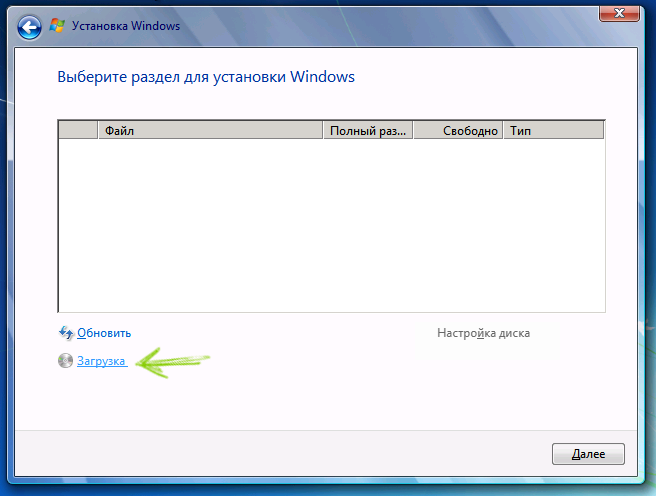

The Windows 10 Recovery Environment (WinRE) allows you to perform various system repair and troubleshooting operations. It can be used to access advanced startup options such as Safe Mode, disabling driver signature enforcement, performing a system reset, repairing the Windows bootloader, and many other recovery tools.
In this guide, we’ll look at several simple ways to access the Windows 10 Recovery Environment in different situations: both when the system is fully working and when Windows cannot start.
You may also find this helpful: How to Fix the “Unable to Find Recovery Environment” Error.
Launching Recovery Environment from Windows Settings
Easy Way to Open Windows 10 Recovery Environment from Settings
The standard way to access the Windows 10 recovery environment is through system settings.
Follow these steps:
1. Open Windows Settings
Click the Start menu, then select the Settings icon (gear icon).
You can also open Settings using the keyboard shortcut:
Win + I
2. Navigate to Recovery Options
Go to:
Update & Security → Recovery
3. Restart into Advanced Startup
Under Advanced startup, click the button:
Restart now

4. Wait for the System to Restart
Windows will restart and open the Recovery Environment menu.

After the reboot, you will be able to access various troubleshooting tools.
In some rare cases, certain recovery options may be missing in the menu:
Troubleshoot → Advanced Options
For example, you may not see:
- System Image Recovery
- Startup Repair
- System Restore
This usually means that the Windows recovery environment image is missing or damaged.
You can fix this issue by restoring the recovery environment. (See the article mentioned earlier about fixing the “Unable to find recovery environment” error.)
How to Access the Recovery Environment from the Lock Screen
If you cannot log into Windows 10 but still need to access the recovery environment, you can do it directly from the lock screen.
1. Open the Power Menu
On the login screen, click the Power icon in the bottom-right corner.
Then hold the Shift key and click Restart.

2. Confirm Restart
You will see a message warning that restarting may cause unsaved data to be lost.
Click:
Restart anyway
3. Recovery Environment Will Launch
After the restart, Windows will open the Recovery Environment.
Note that when using this method, many recovery tools will still require administrator credentials.
You may also find this helpful: How to Reset a Windows 10 Password.
Using a Windows 10 Bootable USB Drive or Recovery Disk
If you have a Windows 10 bootable USB drive, recovery disk, or the ability to create one (even on another computer), you can use it to launch the recovery environment.
The necessary recovery files are included directly on the installation media.
Below is an example using a Windows 10 installation USB drive.
1. Boot from the Windows Installation Drive
Start the computer from the Windows 10 installation USB drive.
(See also: How to Boot from a USB Drive in BIOS/UEFI.)
2. Open the Installation Screen
On the first setup screen, click:
Next
3. Choose System Recovery
On the next screen, click:
Repair your computer
in the lower-left corner.
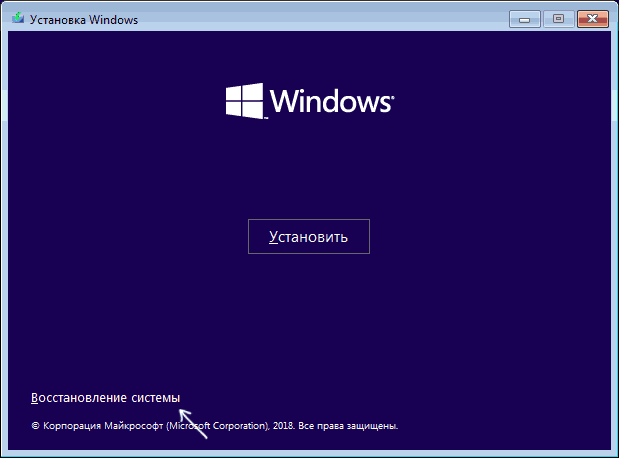
4. Recovery Environment Will Start
After this step, the Windows Recovery Environment will open.
However, keep in mind that when using this method some features may be unavailable.
For example:
- Reset this PC may not work from installation media.
When Should You Use Windows Recovery Environment?
The Windows Recovery Environment can help resolve a variety of system problems, including:
- Windows not booting properly
- startup errors
- driver conflicts
- corrupted system files
- failed Windows updates
These tools allow you to repair the system without needing to reinstall Windows immediately.
When Professional Repair May Be Needed
If Windows continues to fail during startup or recovery tools do not resolve the issue, the problem may be related to hardware failure, corrupted system storage, or severe system damage.
In such cases, professional diagnostics may help identify the root cause and restore system functionality.
Technicians at Xelow.tech provide diagnostics, operating system recovery, and repair services for computers experiencing startup and system errors.