
Previously, an article was published on this site explaining how to configure the page file in Windows 10, Windows 8.1, and Windows 7. One additional option that may be useful is moving the page file from one drive to another HDD or SSD.
This can be helpful if:
- there is not enough free space on the system partition
- you cannot easily expand the system partition
- you want to place the page file on a faster SSD
In this guide, we’ll explain step-by-step how to move the Windows page file (pagefile.sys) to another drive and what important details you should keep in mind.
Note: If your goal is simply to free space on the system drive, a better solution might be expanding the system partition instead. You may also find helpful tools designed specifically for SSD optimization.
Quick Answer: Moving the Windows Page File
If you want to move the Windows page file (pagefile.sys) to another drive, open Advanced System Settings → Performance → Settings → Advanced → Virtual Memory, disable automatic management, and assign the paging file to a different disk. After restarting the computer, Windows will recreate the page file on the selected drive.
Moving the page file can help free space on the system drive or place virtual memory on a faster SSD. However, Windows performance usually improves only if the target drive is faster than the system disk.
Configuring Page File Location in Windows 10, 8.1, and Windows 7
To move the Windows page file to another disk, follow these steps:
1. Open Advanced System Settings
You can do this in two ways:
- Go to Control Panel → System → Advanced system settings
- Or press Win + R, type:
systempropertiesadvanced
Then press Enter.
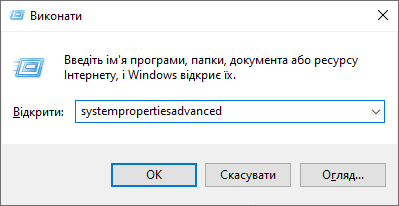
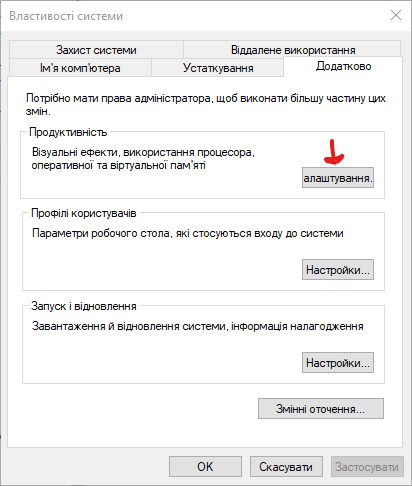
2. Open Performance Settings
In the Advanced tab, under the Performance section, click Settings.
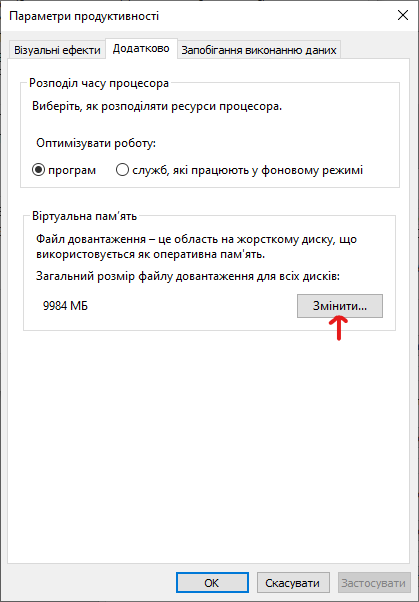
3. Open Virtual Memory Settings
In the next window, go to the Advanced tab and under Virtual memory, click Change.
4. Disable Automatic Page File Management
If the checkbox “Automatically manage paging file size for all drives” is enabled, uncheck it.
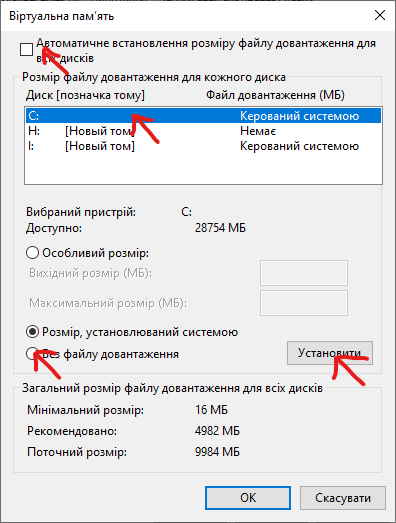
5. Disable the Page File on the Current Drive
From the list of drives:
- Select the drive where the page file currently exists (usually C:)
- Select No paging file
- Click Set
A warning message will appear — click Yes.
(We’ll explain this warning in the additional information section below.)
6. Enable the Page File on Another Drive
Now select the drive where you want the page file to be located.
Then choose either:
- System managed size, or
- Custom size and enter your preferred values.
Click Set.
7. Apply the Settings
Click OK, then restart your computer.
After the restart, the file pagefile.sys should automatically be removed from drive C:.
However, it’s a good idea to verify this manually.
If the file still exists, you can delete it manually.
Note: Simply enabling “Show hidden files” is not enough to see the page file. You must also:
- Open File Explorer Options
- Go to the View tab
- Uncheck Hide protected operating system files
Additional Information
The steps above are usually enough to move the page file to another drive. However, there are a few important details to consider.

If there is no small paging file (around 400–800 MB) on the system drive, Windows may behave differently depending on the version:
- Windows may not record debugging information when a system crash occurs.
- Windows may create a temporary page file automatically.
If the page file continues to appear on the system partition, you have two options:
Option 1
Enable a small page file on the system drive.
Option 2
Disable memory dump recording.
To do this:
- Open Advanced system settings (Step 1 in this guide).
- In the Advanced tab, under Startup and Recovery, click Settings.
- Under Write debugging information, choose None.
- Apply the changes.
Hopefully, this guide helps you successfully move the Windows paging file to another drive.
If you have questions or additional suggestions, feel free to leave a comment.
You may also find useful: How to move the Windows 10 update folder to another drive.
FAQ
Is it safe to move the Windows page file to another drive?
Yes. Windows fully supports moving the page file to another drive. Just make sure the target disk has enough free space and is reliable.
Should the page file be on an SSD?
If possible, yes. SSDs are significantly faster than HDDs, which can improve paging performance when the system runs low on RAM.
Can I completely disable the page file?
Disabling the page file is not recommended for most users. Some programs and Windows features rely on virtual memory and may stop working properly without it.
What is the best size for a Windows page file?
For most users, System Managed Size is the best option. Windows automatically adjusts the paging file based on system needs.