
In this guide, we’ll assume that you already understand why you want to update the BIOS. Below are the general steps for updating a motherboard BIOS that apply regardless of the specific motherboard model installed in your computer.
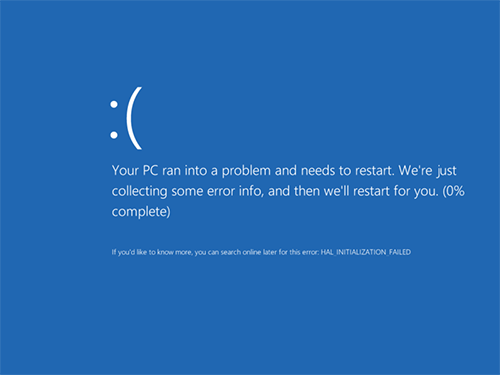
If you don’t have a specific reason to update the BIOS and your system is working normally, it’s often best not to update it. BIOS updates always carry a small risk, and if something goes wrong, fixing the issue can be much more complicated than reinstalling Windows.
Do I Need a BIOS Update for My Motherboard?
The first thing you should determine before updating BIOS is:
- the revision of your motherboard
- the current BIOS version
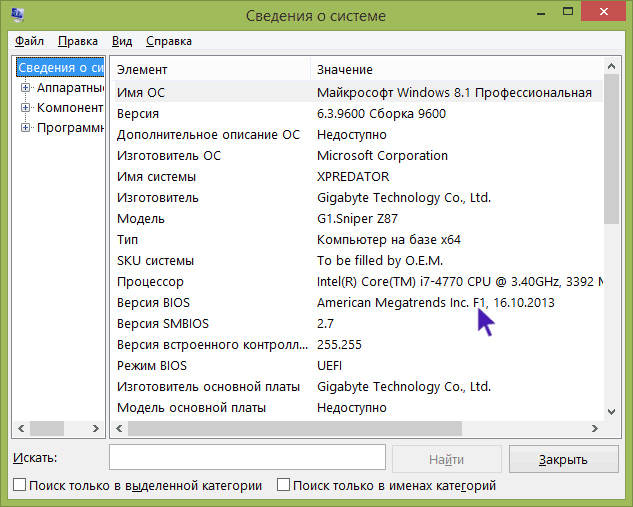
How to Find Your Motherboard Revision
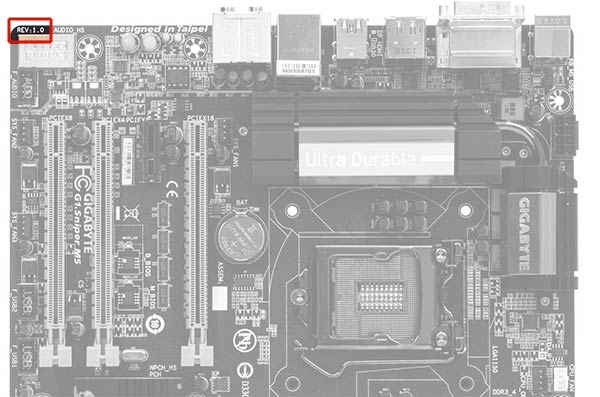
You can usually find the motherboard revision printed directly on the board itself. Look for something like:
rev. 1.0
rev. 2.0
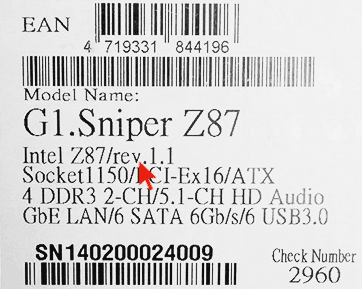
Another option is to check the original motherboard box or documentation, where the revision number is often listed.
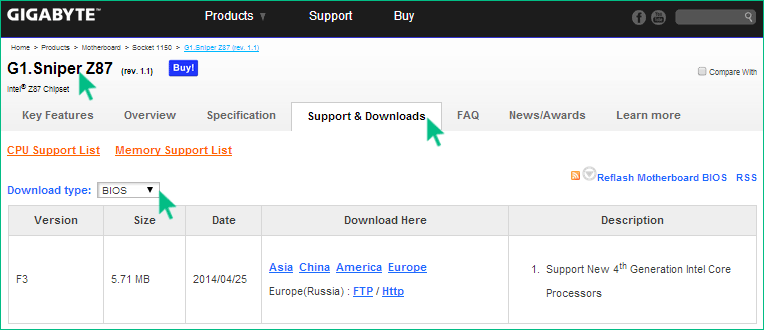
How to Check Your Current BIOS Version
You can check the BIOS version in Windows:
- Press Windows + R
- Type:
msinfo32
- Press Enter
- Look for BIOS Version/Date in the System Information window.
Once you know your motherboard revision and BIOS version, go to the official website of your motherboard manufacturer.
Find your motherboard model and open the Support or Downloads section. There you can check whether a newer BIOS version is available.
Important Note
If you bought a prebuilt computer from a major manufacturer such as:
- Dell
- HP
- Acer
- Lenovo
- ASUS
you should not download BIOS updates from the motherboard manufacturer’s site.
Instead, visit the computer manufacturer’s support page, enter your PC model, and check for BIOS updates there.
Common Ways to Update BIOS
The exact method depends on the motherboard manufacturer and model. However, these are the most common BIOS update methods.
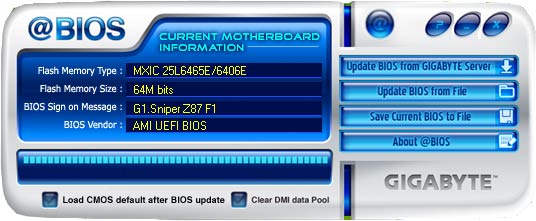
1. Updating BIOS Using a Windows Utility
Many manufacturers provide their own update software that runs directly in Windows.
This method is common for laptops and many desktop motherboards from:
- ASUS
- Gigabyte
- MSI
For most users, this is the simplest and safest option.
These utilities usually:
- verify that the BIOS file is correct
- sometimes download the update automatically from the manufacturer’s server
Before updating BIOS in Windows:
- Close all running programs
- Avoid running heavy applications during the update
⚠️ Do not restart or power off the computer during the update process.
2. Updating BIOS in DOS
Another method involves updating BIOS through a minimal DOS environment.
This usually requires creating a bootable USB flash drive that contains:
- a DOS environment
- the BIOS update file
- sometimes an update utility
In some cases, the update package also includes a file like:
AUTOEXEC.BAT
UPDATE.BAT
These files automatically start the update process after booting into DOS.
3. Updating BIOS Directly from BIOS/UEFI
Many modern motherboards support BIOS updates directly inside the BIOS interface.
If you are certain you downloaded the correct BIOS version, this method is often the most convenient.
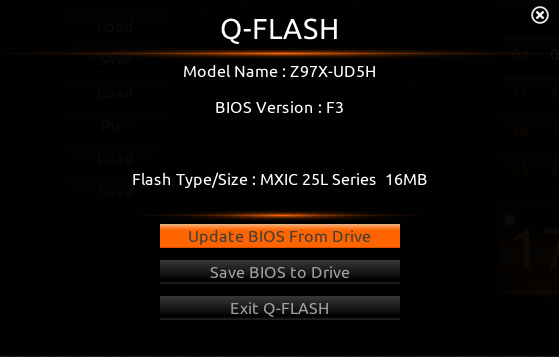
Typically the process looks like this:
- Enter BIOS/UEFI setup
- Open the built-in update tool (examples include):
- EZ Flash
- Q-Flash
- M-Flash
- Select the BIOS file from a USB flash drive
- Start the update process
How to Safely Update BIOS
Because BIOS update procedures vary depending on the motherboard, it’s very important to read the official instructions from the manufacturer.
Many manufacturers publish detailed step-by-step guides.
Even though these guides are often in English, they may include important details specific to your hardware.
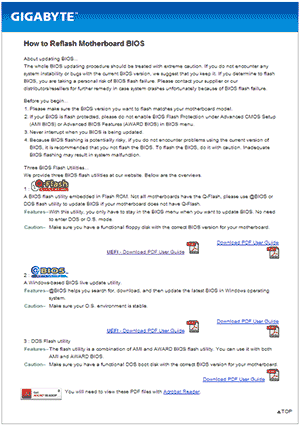
For example, Gigabyte recommends disabling Hyper-Threading on some motherboards before updating BIOS. If you skip instructions like this, the update may fail.
Official BIOS Update Guides from Major Manufacturers
Below are links to official instructions and utilities.
Gigabyte
Gigabyte provides documentation for several update methods and also offers a Windows utility that can automatically detect and download the correct BIOS version.
MSI
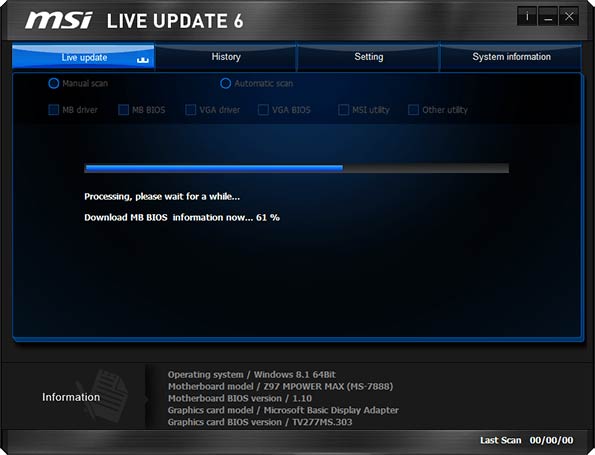
For MSI motherboards, you can use the MSI Live Update utility.
It can automatically:
- detect your motherboard
- check for updates
- download the correct BIOS version
Instructions and downloads are available on the MSI support page for your specific motherboard.
ASUS
For modern ASUS motherboards, the easiest option is USB BIOS Flashback.
You can download the required tools in the Support → Drivers & Utilities → BIOS & Firmware section on the ASUS website.
Older ASUS motherboards may use ASUS Update Utility for Windows.
There are also options to update BIOS through DOS.
Reset BIOS Settings After Updating
One step that appears in almost every manufacturer’s instructions is resetting BIOS to default settings after the update.
After the update completes:
- Enter BIOS again
- Select:
Load BIOS Defaults
- Save the settings
- Reconfigure any custom settings you previously used.
Final Advice Before Updating BIOS
The most important recommendation is simple:
Always follow the official instructions from your motherboard manufacturer.
This guide explains the general process, but every motherboard can have small differences.
If even one step is missed — or if your system uses a slightly different configuration — the update may fail and leave the system unable to start.
BIOS Update Tools by Manufacturer
Different motherboard manufacturers provide their own utilities for updating BIOS. These tools are designed to make the process safer and easier by verifying firmware files and guiding users through the update process.
Below is a quick overview of the most common BIOS update tools used by major manufacturers.
| Manufacturer | BIOS Update Tool | How It Works | Notes |
|---|---|---|---|
| ASUS | EZ Flash / USB BIOS Flashback | Updates BIOS directly from the BIOS interface using a USB drive | USB BIOS Flashback can update BIOS even without CPU or RAM installed |
| Gigabyte | Q-Flash | Built-in BIOS tool that updates firmware from a USB drive | One of the most reliable update methods |
| MSI | M-Flash | Allows BIOS updates from within BIOS using files stored on USB | Simple interface, commonly used on modern MSI boards |
| ASRock | Instant Flash | Automatically scans USB drives for BIOS files | Often detects correct firmware automatically |
| Dell | Dell BIOS Update Utility | Runs inside Windows and automatically updates firmware | Typically delivered through Dell SupportAssist |
| HP | HP BIOS Update Utility | Windows-based BIOS update tool provided through HP Support | Usually available via HP Support Assistant |
| Lenovo | Lenovo BIOS Update Tool | Firmware updates provided through Lenovo Vantage or manual download | Some models also support BIOS update from USB |
| Intel (older boards) | Intel Express BIOS Update | Windows-based BIOS updater for Intel desktop boards | Many Intel consumer boards are discontinued |
Which BIOS Update Method Is Best?
In general:
- Built-in BIOS utilities (EZ Flash, Q-Flash, M-Flash) are the safest option.
- Manufacturer Windows tools are convenient for many laptop users.
- Bootable USB updates are useful if the system cannot start Windows.
⚠️ Regardless of the method, always download BIOS updates only from the official manufacturer website and confirm that the firmware matches your exact motherboard model and revision.